Arduino Development Board

ArDev completed

Recently I decided to try my hand at building another PCB. This time i wanted an arduino atmega 328 board that i can conceivably use in any situation.

It started off with the idea of being just a microcontroller, its crystal, and all the pins broken out into headers.

A poor mans arduino without all the extras, saving on costs, when i just needed to do a simple task.

What i ended up with was a lot more than that..

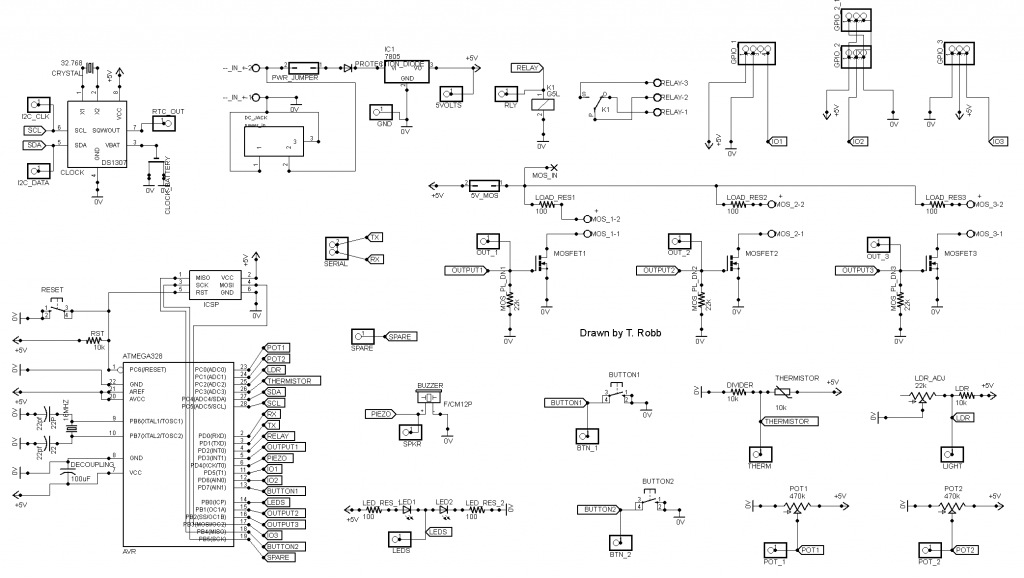
Arduino DevBoard Schematic croppedAt first I just layed out the Atmega with its crystal and 2 caps. Then i thought I may as well add a voltage regulator and power cap as well.

Then I began to squeeze extras into the leftover board space. Before I knew it I had decided to create a board that had room for lots of peripherals but I wouldn’t necessarily populate the whole board if I didn’t need that function.

I had to choose what items to include and which were the best pins for them. I chose based on sensors and peripherals i had used and was comfortable with.

Some pins are fixed such as the I2C bus, the serial pins and the programming pins. The PWM pins I kept for the mosfets, and the analog pins for the sensors.

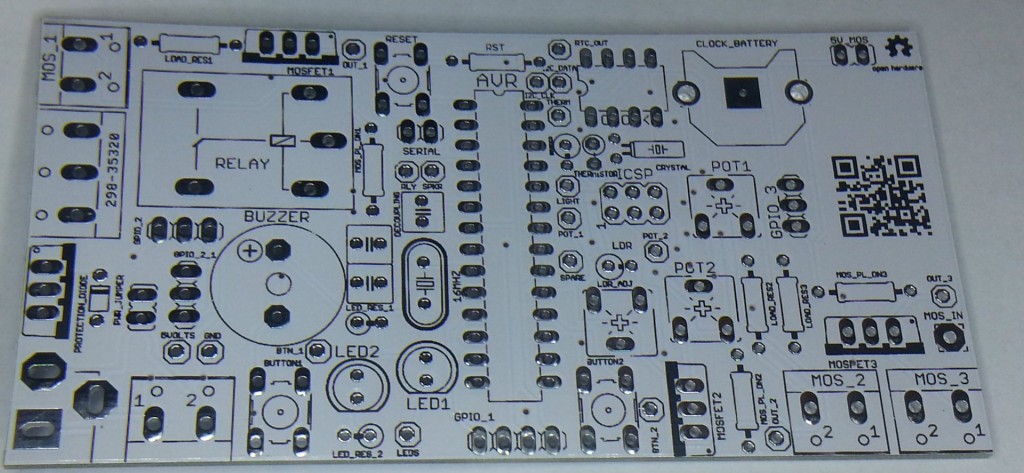
board

I tried to cram as much into the board as I could,trying to organize it into a usable pattern, while keeping everything as close as I dared. Somethings needed to be on the edge to be usable, and some things need to be reachable to the touch. In the end I did what I could and hoped it would be a useful PCB!

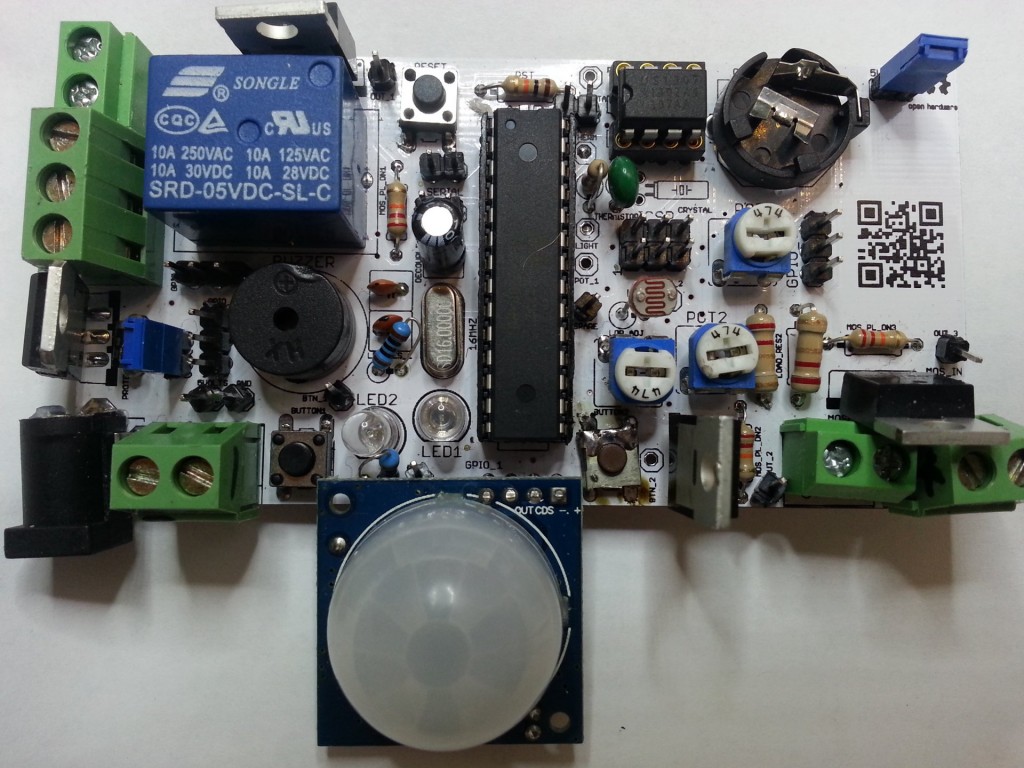
The board contains the following features!!

On board power regulator with a DC jack in, light dependant resistor, temperature thermistor, relay, piezo speaker, reset button, real time battery backed up clock,serial port, 2 buttons, 2 potentiometers, 2 LEDS, 2 servo ports, movement PIR sensor, 3 high power MosFets, 3 general purpose IO. All atmega pins and power supply pins are broken out to headers; power, mosfet and relay outputs are on screw terminal blocks. There is an ICSP programming header on board.

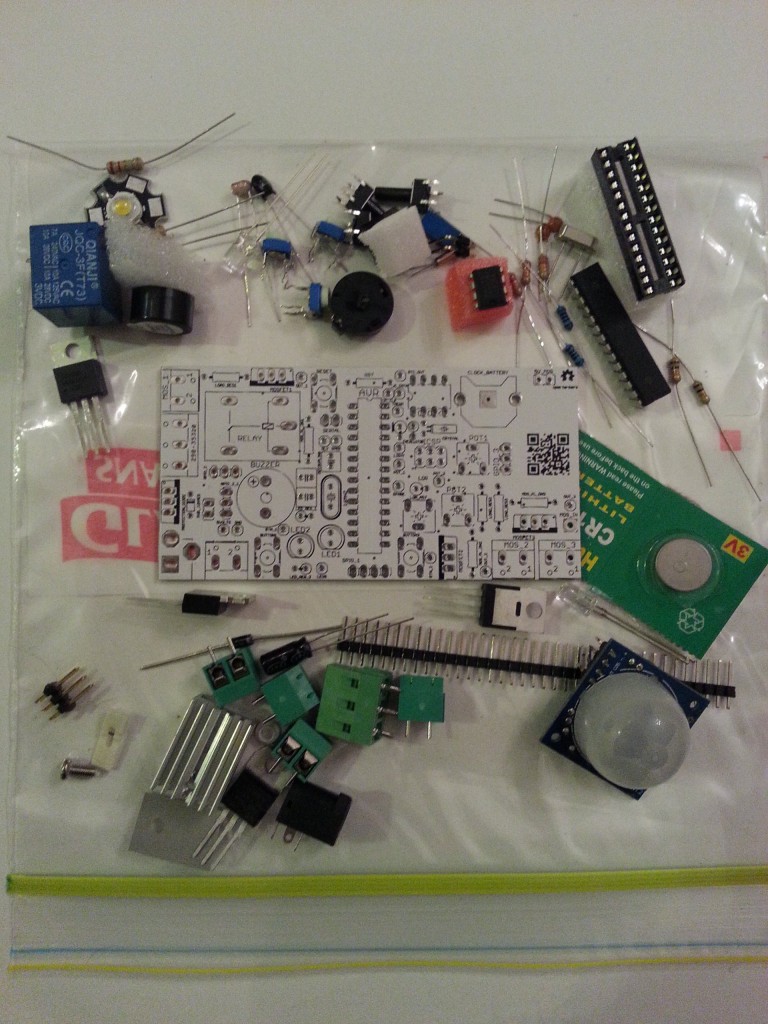
board on bag

I finished the schematic and layout of the board. I sent off the designs to the board house. The board has a few mistakes but on the whole I’m really happy with it.

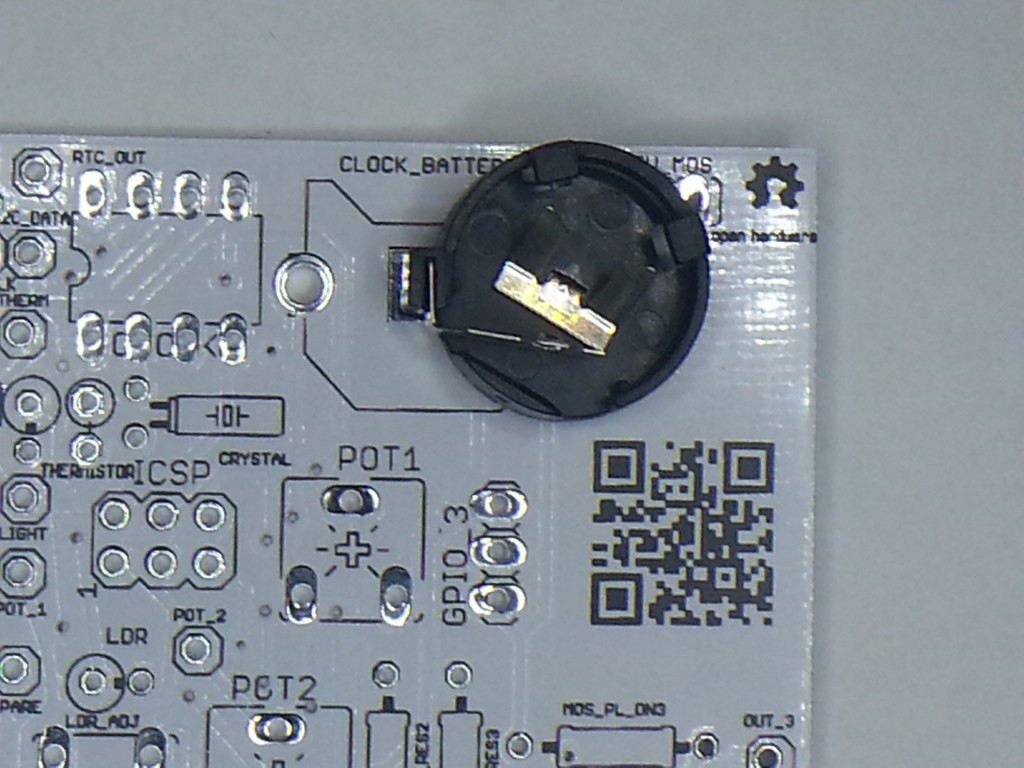
The worst bodge is the battery holder which has the polarity back to front, I forgot that a button cell has the positive polarity on the outside of the case unlike normal cells. I was magically able to slide the cell holder over and solve the problem temporarily, so that was great. The mosfet jumper if used must be changed to a right angle though.

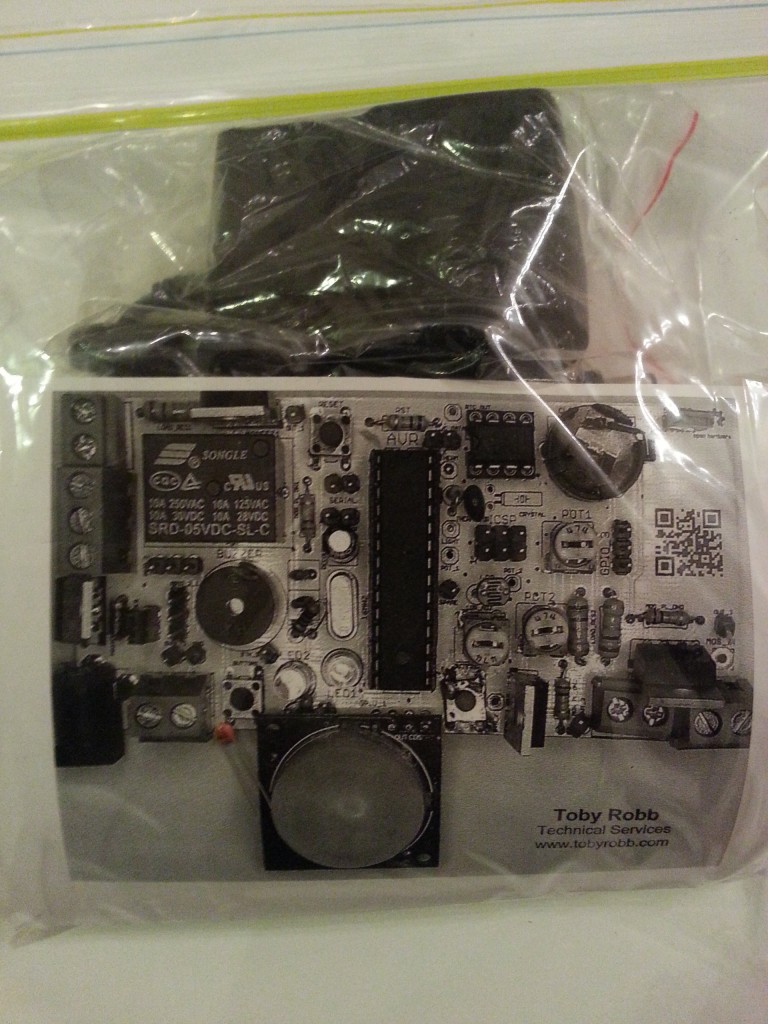
A lot of the polarities on the board are not marked, although a completed picture of the board makes assembly easy.

Board bodge

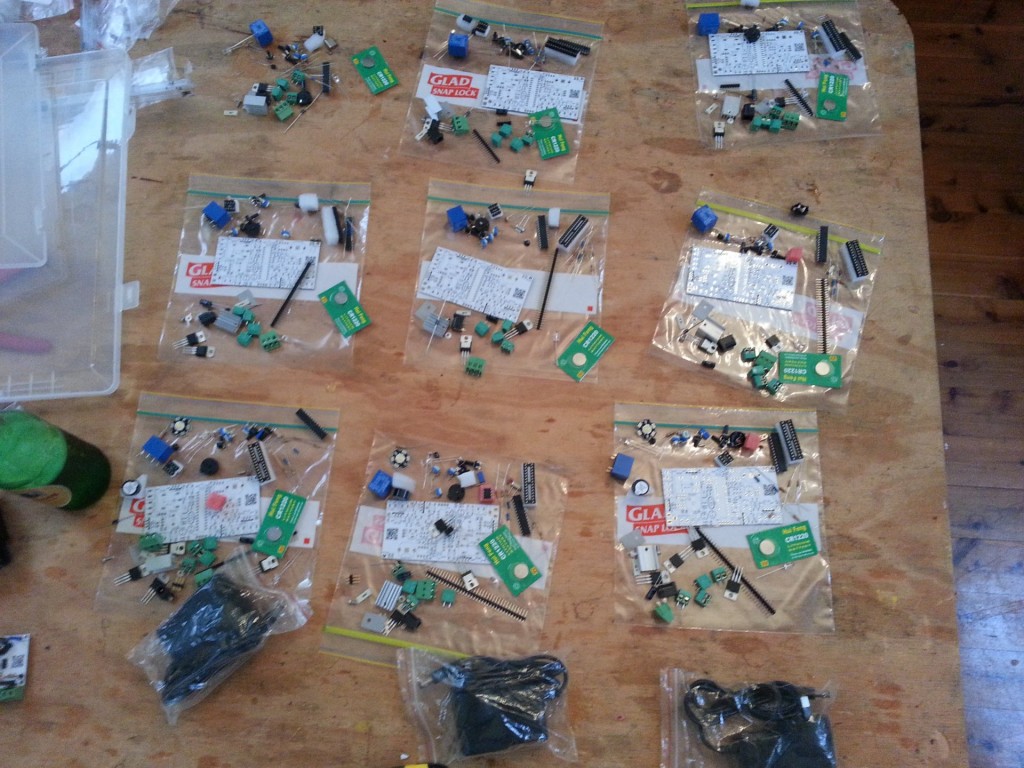
I paid for 10 boards at a little more than $2 each, then bought lots of parts at about $30 per board, so I could populate them. I decide to bag them all up individually and throw in a copy of the schematic and finished board picture with a few notes as well.

I thought I would give away a few kits to friends and throw a few up onto my blog shop for sale at the cost of parts only.
kits

The first thing i did when i got the boards, was put in the power system and check all the voltages, then i put the processor in with its crystal and caps. Then I uploaded a blink sketch and probed the led pin. After that all worked i just added parts one at a time testing each. I wrote a test sketch for all the functions. ,So far I have written code for a number of different tasks with it, including a clock, a thermostat relay, a movement sensitive night light, an RGB controller, and a dimmable led driver. There are many more things I will be using the board for in the future.bagged

If I run another batch of boards, I will fix the backup battery polarity, the labelling, change the back art, and maybe add an LCD header.

Here is the schematic, feel free to contact me for the board files and any code I have.

Here is my first test sketch..

/*

Arduino Dev board

20 July 2013

Toby Robb

This is a test sketch for the Arduino Development board
NOTES:

You must enable the internal pullups for the buttons by setting as inputs then writing HIGH
The leds if fitted also require the pullups to be enabled

*/

// Includes

#include <Servo.h> // Include the servo library

// Defines

#define ldrPin A2 // Light dependant resistor pin on board.
#define thermistorPin A3 //Temperature thermistor pin on board.
#define ledPin 8 // Led pin High for one colour Low for another
#define speakerPin 4 // The onboard speaker pin
#define relayPin 2 // Pin for the relay
#define sparePin 13 //Spare pin breakout on board

#define dataPin A4 // The I2C bus DATA pin
#define clockPin A5 // The I2C CLOCK pin

#define pot1Pin A0 // Number 1 potentiometer on the board.
#define pot2Pin A1 // Number 2 potentiometer on the board.

#define button1Pin 7 // Button 1 pin
#define button2Pin 12 // Button 2 pin

#define gpio1Pin 5 // General Purpose Input/output 1 pin
#define gpio2Pin 6 // General Purpose Input/output 2 pin
#define gpio3Pin 11 // General Purpose Input/output 3 pin

#define mosfet1Pin 3 // Mosfet 1 drive pin
#define mosfet2Pin 9 // Mosfet 2 drive pin
#define mosfet3Pin 10 // Mosfet 3 drive pin

Servo servo1; // create servo object to control a servo
// a maximum of eight servo objects can be created
int servoPos = 0; // variable to store the servo position

void setup(){

// Setup the serial

Serial.begin(9600);
Serial.println(“Beginning Setup”);

// Set up the pins

pinMode(ldrPin, INPUT); // If the light sensor resistor is fitted
pinMode(thermistorPin, INPUT); // If the temperature sensor resistor is fitted
pinMode(ledPin, OUTPUT); // You MUST use this if the LED’s are fitted.
pinMode(relayPin, OUTPUT); // If the relay is fitted.
pinMode(speakerPin, OUTPUT); // If the speaker is fitted.
pinMode(pot1Pin, INPUT); // If the potentiometer is fitted
pinMode(pot2Pin, INPUT); // If the potentiometer is fitted
pinMode(button1Pin, INPUT); // If the button is fitted (write HIGH to enable pullups)
pinMode(button2Pin, INPUT); // If the button is fitted (write HIGH to enable pullups)
pinMode(mosfet1Pin, OUTPUT); // Mosfet 1 output
pinMode(mosfet2Pin, OUTPUT); // Mosfet 2 output
pinMode(mosfet3Pin, OUTPUT); // Mosfet 3 output

servo1.attach(11); // attaches the servo on pin 11 gpio 3 to the servo object

// default states
digitalWrite(ledPin, HIGH);
digitalWrite(dataPin, HIGH);
digitalWrite(clockPin, HIGH);
digitalWrite(relayPin, LOW);
digitalWrite(button1Pin, HIGH); // enables pullups for buttons
digitalWrite(button2Pin, HIGH); // enables pullups for buttons

servo1.write(0);
}

void loop(){

//beep the buzzer
Serial.println(“Beep”);
tone(speakerPin, 500); // begin tone at 1000 hertz
delay(150); // wait half a sec
noTone(speakerPin); // end beep

//flash the leds
Serial.println(“Flash the LED’s”);
for(int i = 0; i<=8; i++){
digitalWrite(ledPin, HIGH); // turn the LED on (HIGH is the voltage level)
delay(100); // wait for a second
digitalWrite(ledPin, LOW); // turn the LED off by making the voltage LOW
delay(100); // wait for a second
}

// Cycle the relay
digitalWrite(relayPin, HIGH);
Serial.println(“Relay ON”);
delay(1000);
digitalWrite(relayPin, LOW);
Serial.println(“Relay OFF”);

// Test the mosfets

Serial.println(“Mosfet 1 blink”);
digitalWrite(mosfet1Pin, HIGH);
delay(250);
digitalWrite(mosfet1Pin, LOW);

Serial.println(“Mosfet 2 blink”);
digitalWrite(mosfet2Pin, HIGH);
delay(250);
digitalWrite(mosfet2Pin, LOW);

Serial.println(“Mosfet 3 blink”);
digitalWrite(mosfet3Pin, HIGH);
delay(250);
digitalWrite(mosfet3Pin, LOW);

// Sweep the servo on GPIO 3

Serial.println(“Sweep the servo”);
for(servoPos = 0; servoPos < 180; servoPos += 1) // goes from 0 degrees to 180 degrees
{ // in steps of 1 degree
servo1.write(servoPos); // tell servo to go to position in variable ‘servoPos’
delay(15); // waits 15ms for the servo to reach the position
}
for(servoPos = 180; servoPos>=1; servoPos-=1) // goes from 180 degrees to 0 degrees
{
servo1.write(servoPos); // tell servo to go to position in variable ‘servoPos’
delay(15); // waits 15ms for the servo to reach the position
}

// Print the value of the button states

Serial.print(“Button one state : “);
Serial.println(digitalRead(button1Pin));
Serial.print(“Button two state : “);
Serial.println(digitalRead(button2Pin));
delay(1000);

// Show the value of the LDR for a few seconds
for(int i = 0; i <=50; i++){
Serial.print(“The brightness : “);
Serial.println(analogRead(ldrPin));
}

//show the value of the temperature thermistor for a few seconds
for(int i = 0; i <=50; i++){
Serial.print(“The Temperature : “);
Serial.println(analogRead(thermistorPin));
}

// Print off the potentiometer value for a few seconds
for(int i = 0; i <=50; i++){
Serial.print(“Potentiometer one : “);
Serial.println(analogRead(pot1Pin));
}
for(int i = 0; i <=50; i++){
Serial.print(“Potentiometer two : “);
Serial.println(analogRead(pot2Pin));
}

delay(3000);

}

Morse code keyer for Arduino

Morse code keyer for Arduino.

I recently decided to build another project, this time involving morse code and the arduino.
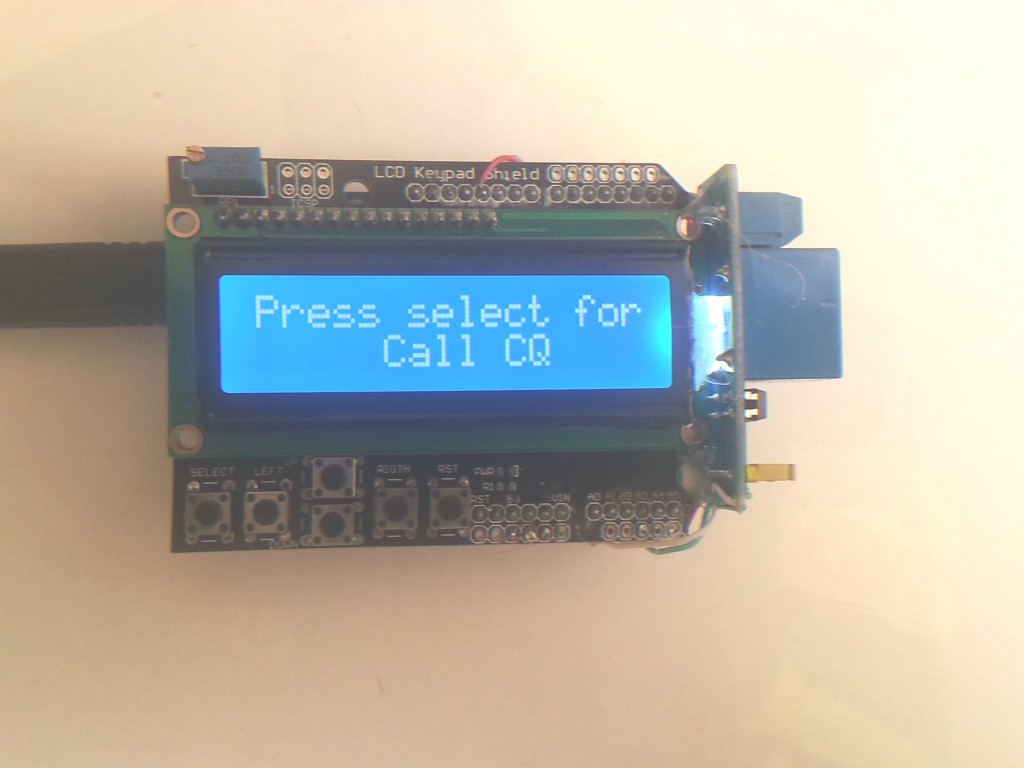
2013-08-18 15.36.25


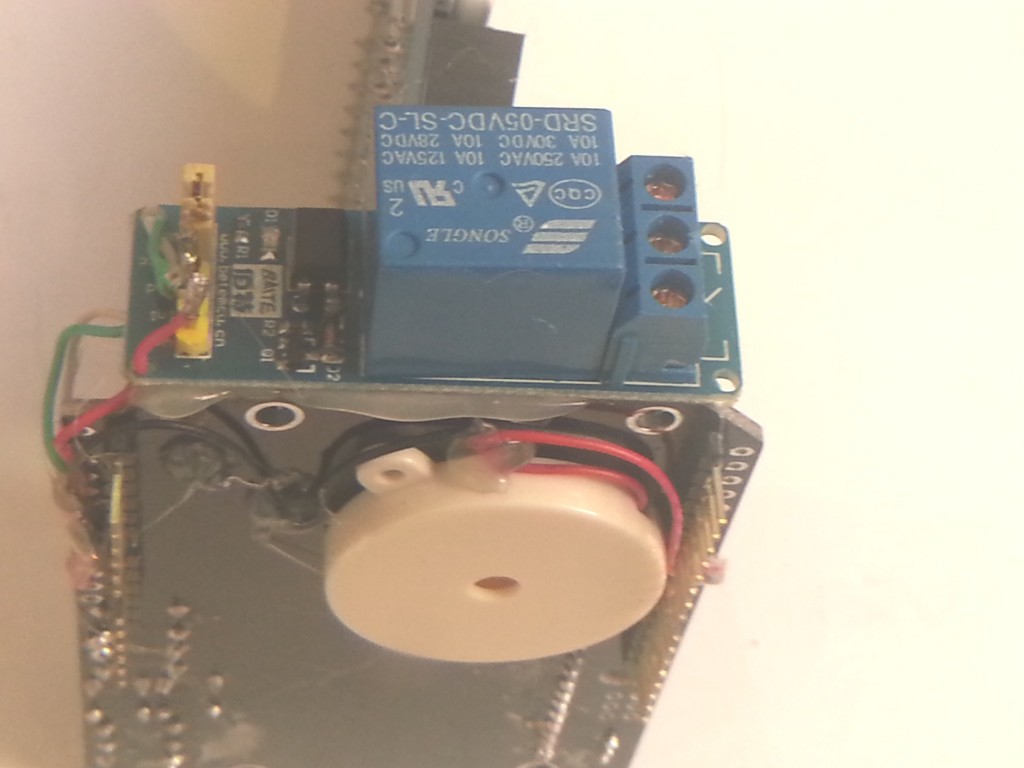
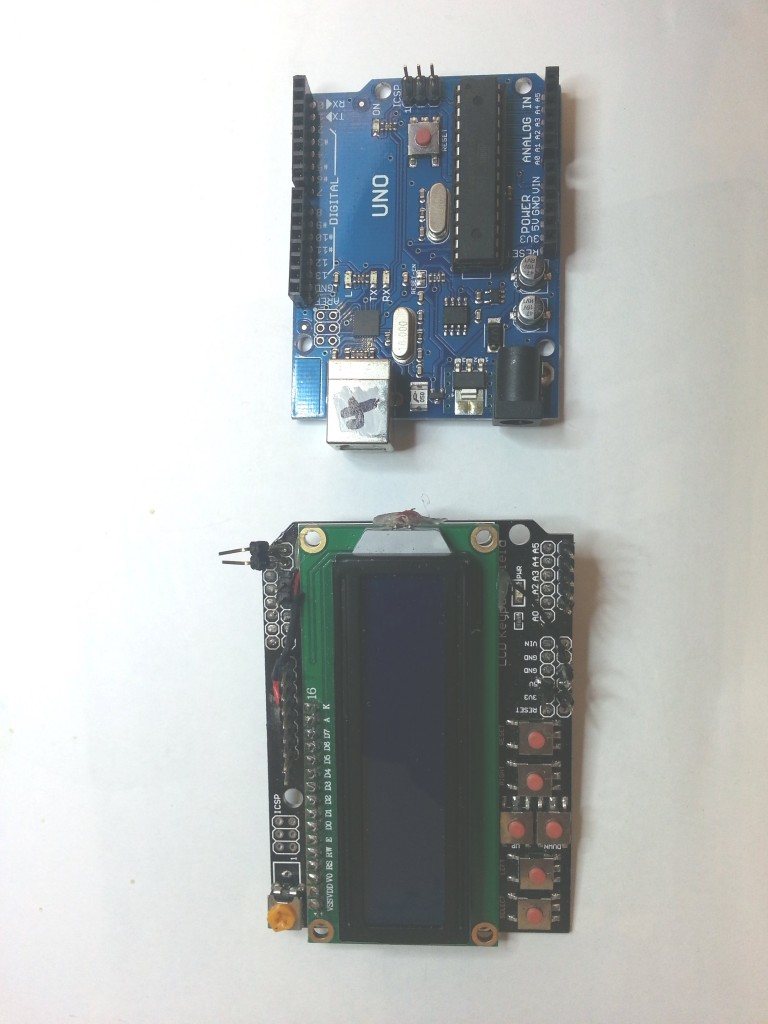
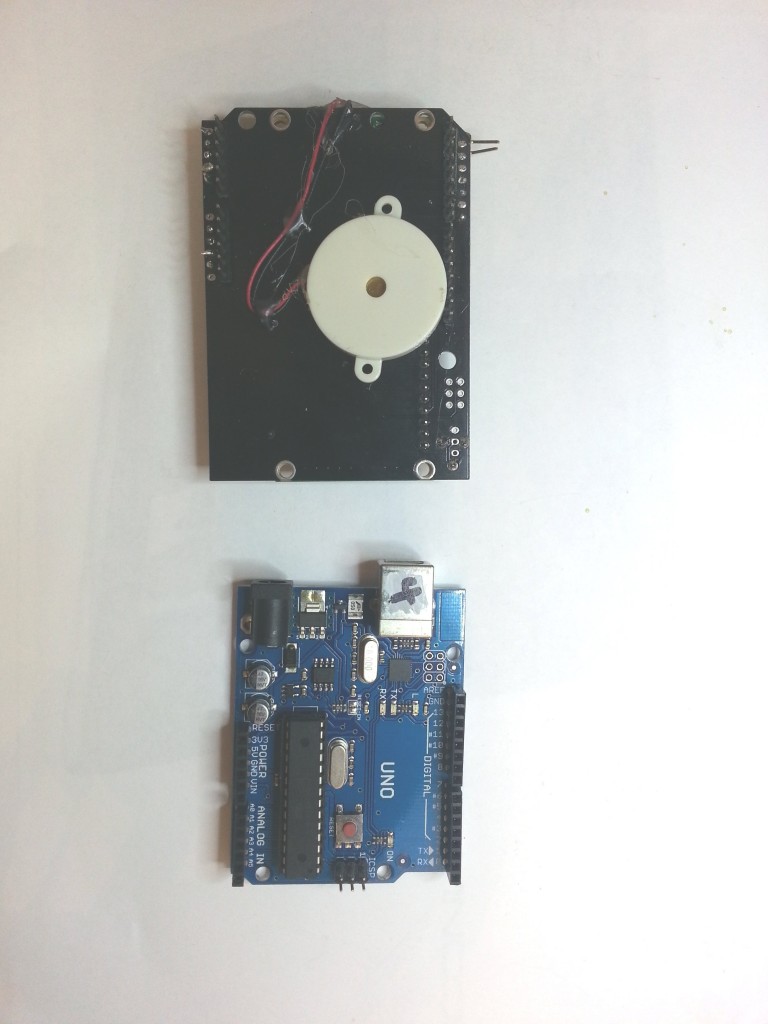
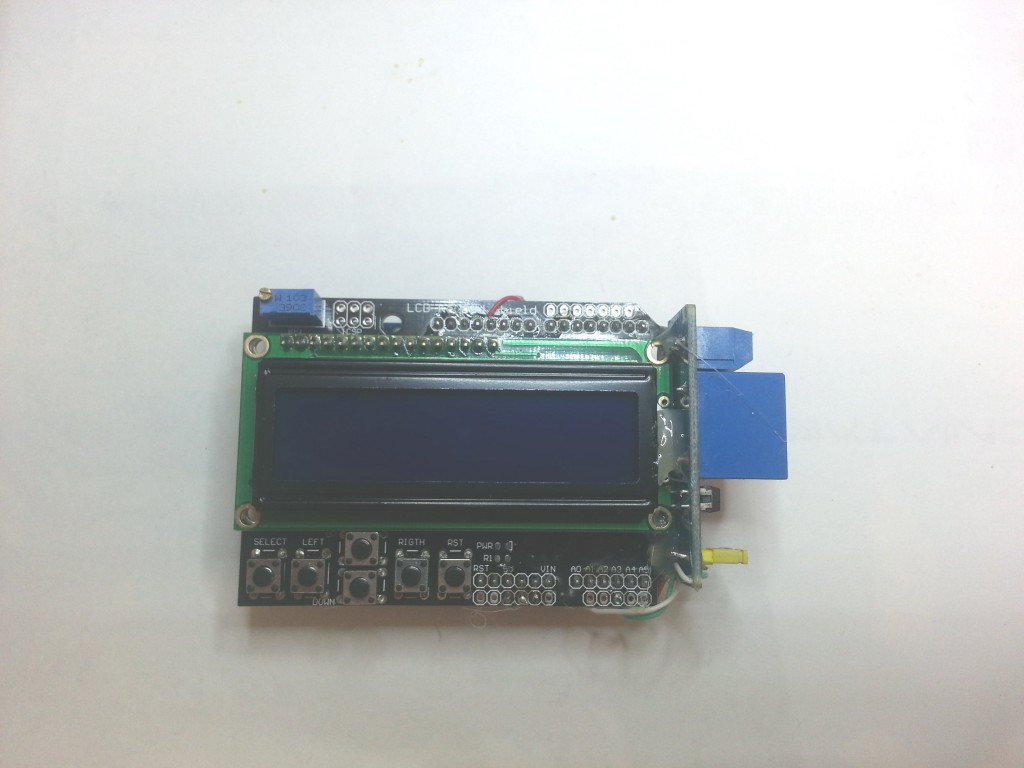
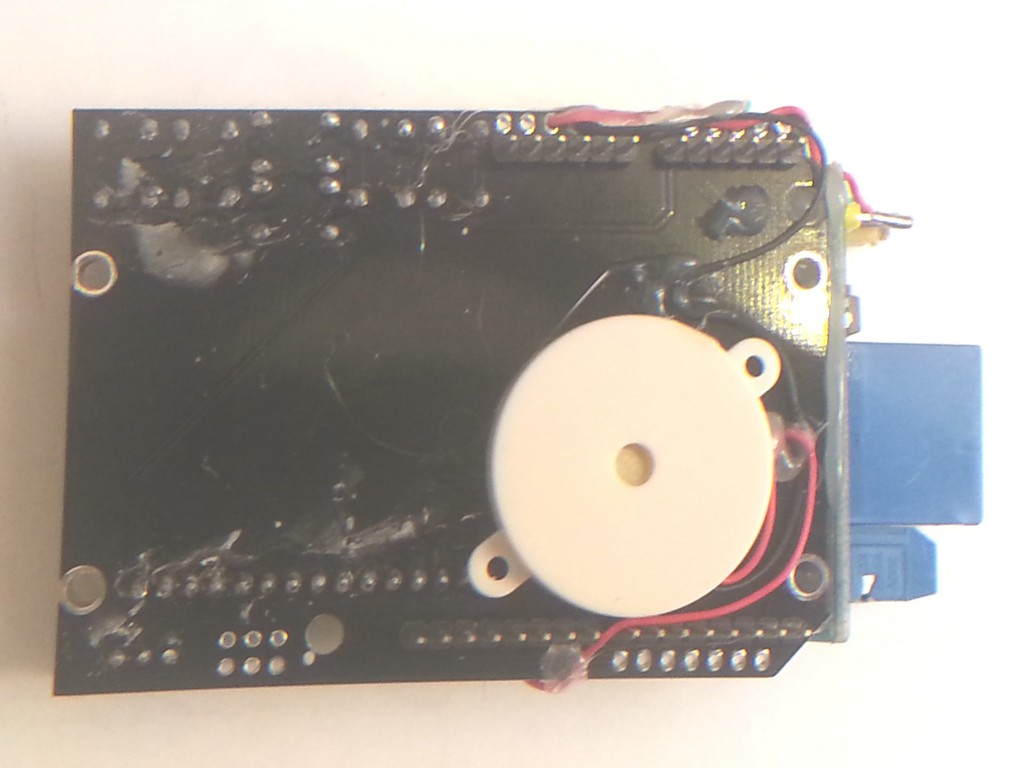
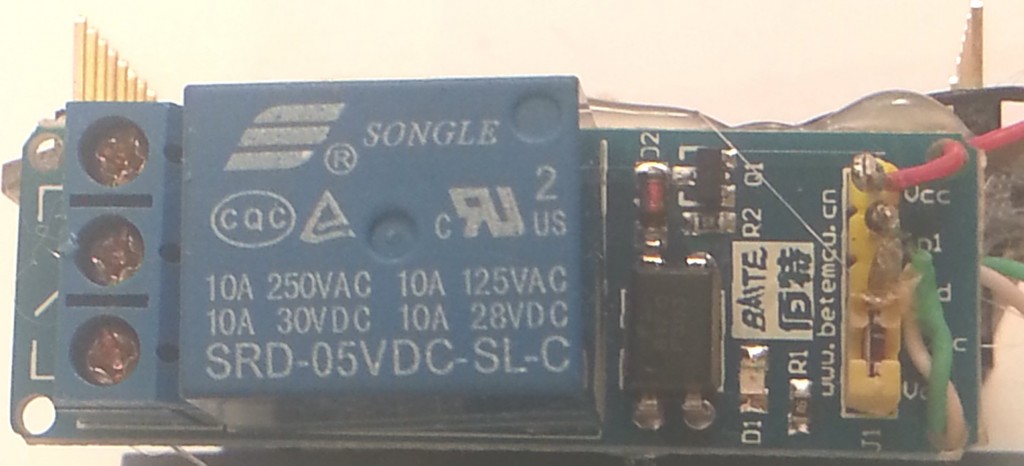
I took a standard Arduino UNO, an LCD keypad shield, a relay module and a piezo buzzer. Total cost was under $25
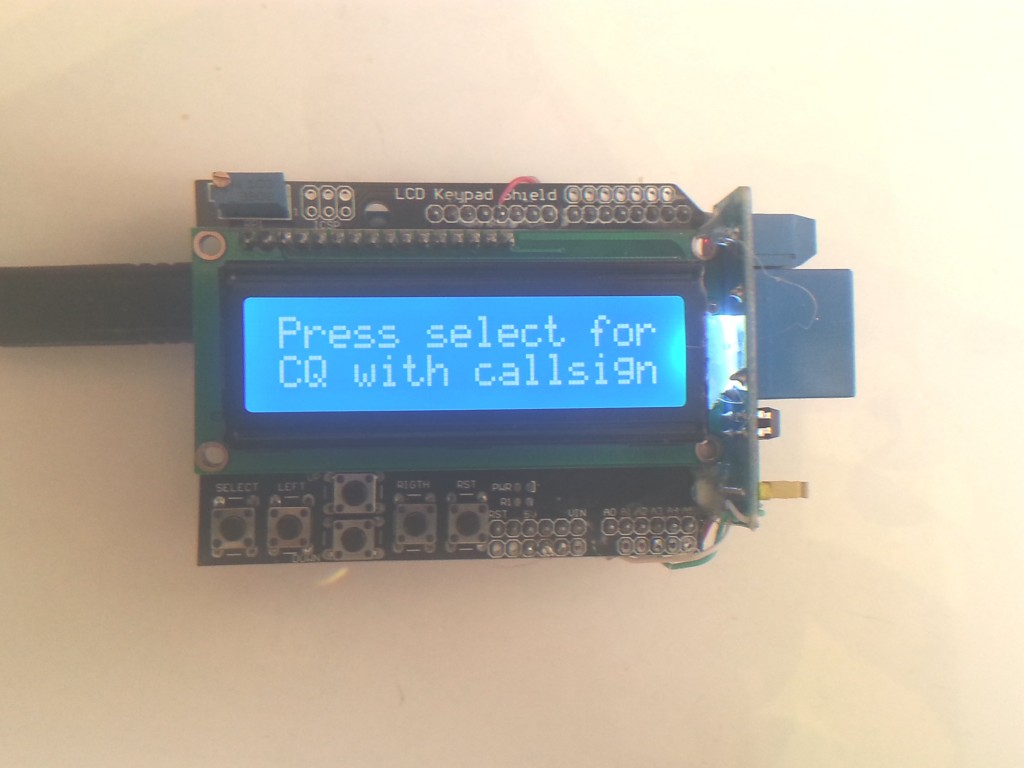
2013-08-18 15.36.12

What does it do?

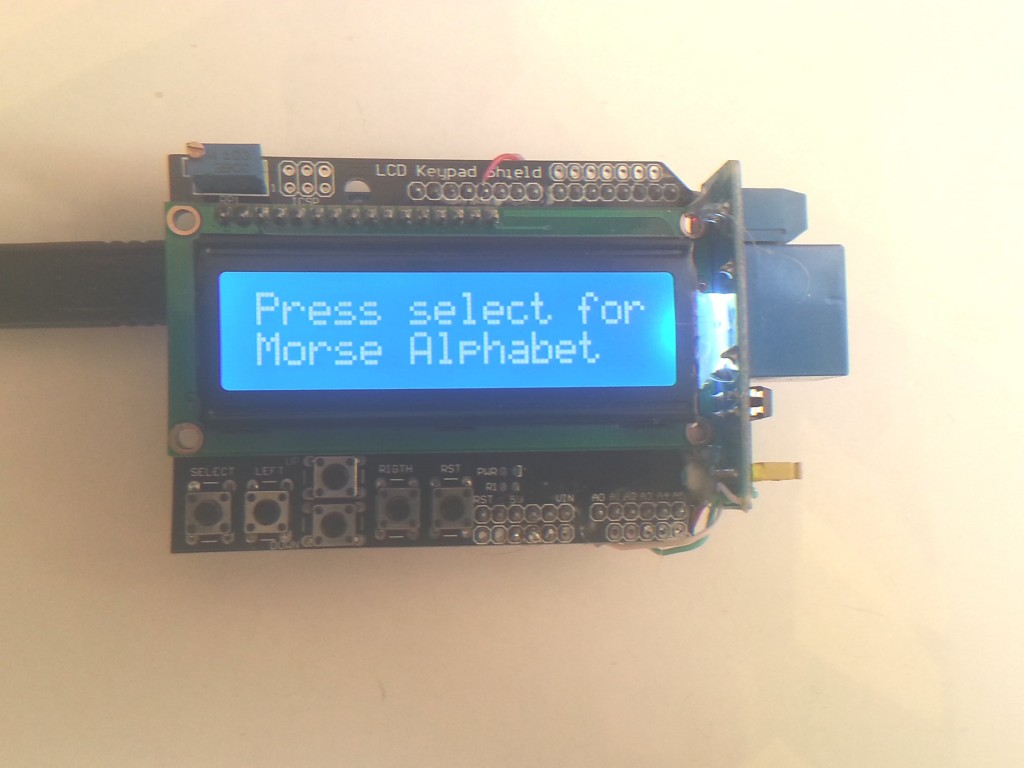
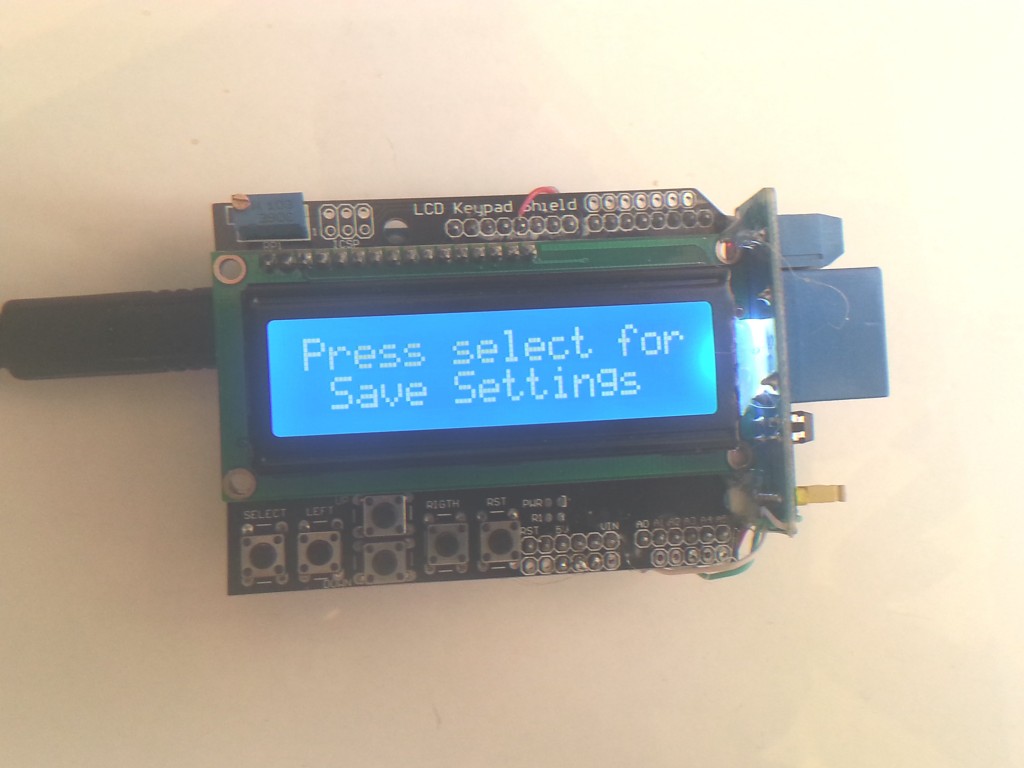
Well it can send morse cq’s or any morse message to the onboard piezo or the relay for connection across a radio key. It has the ability to adjust the speed and timing of the morse. It demo’s the morse alphabet. You can decide it you want to use the relay or not. It can save the settings to the onboard EEPROM and keep them on power off.
2013-08-18 15.31.26


2013-08-18 15.33.03


2013-08-18 15.31.48


2013-08-18 15.28.19


2013-08-18 15.27.59


2013-08-18 15.29.23


The code was a little complicated to write, but it was my first attempt at a menu system. Initially i imagined a grid system of menus using up/down/left/right. Each row would represent a type of function and the pages along the row each related to each other. This meant holding a variable for the column number, a variable for row number, both of which to be looped around or limited. I would then also need to keep a number at the intersection of the row and column which would be the page number. Phew, 3 variables just to start with. I did manage to get it working but wondered if there was a smarter way to go about it.
2013-08-18 15.36.37

I believe in trying to do it your self, so you can learn first. Once you’ve tried it your way, head over to the web and see how the programmers do it! I decided to look around the web.

One example i saw, had left or right scrolling through all of the functions, looping back around to the start. One variable, the program number, incremented or decremented by the left and right keys. Much smarter,simpler and good enough for what i was trying to do here, keep it simple for me and if anyone else wanted to use it.

So that’s pretty much how the code goes.
2013-08-18 15.35.38

I browsed around the web trying to improve my programming skills, as this was probably the hardest code I had written to date. I learned somewhere along the way that good practice was to write out all your comments first, then fill the code in later.

For example;

// here is where the setup will be

// here is where we will define all the variables

// This is the routine that converts a letter into dits and dahs

// this is where the menu code will live


And so on. I added a notes section that described the programs way of working. And i added a TO DO list, for example;

TODO:

add press any key to abort

change pitch of morse key sound

add numbers and special characters

maybe reduce system to one key, short press advances menu, long press to use

provide ability to enter a custom message ie callsign direct from the keypad

beacon menu support

serial control or ethernet if possible

special sounds? psk replies??


A todo list was something that i later found to be an invaluable way of adding things that needed to be fixed.

There have been ten revisions so far, each one adding more capability to the device, I hope the code can be improved further still. There’s even a bit of silly stuff thrown in there for fun.


/*

T Robb 12 sep 12

just a dodgy bit of code, that ought to let you play morse through a speaker or a relay

$ver 0.40
NOTES:

it waits to see if a key has been pressed, if so it increments or decrements the programnumber.
then it compares the programnumber against a number: switch(programnumber)
and runs the appropriate menu

all the functions are at the bottom

there are functions for each letter

there are generally functions for each menu

you may need to put delays in between each letter
TODO:
press any key to abort

change pitch of morse key sound

relay on or off

add numbers and special characters

maybe reduce system to one key

add saving of the variables to non volatile ram

provide ability to enter a custom message ie callsign

beacon support

serial control or ethernet if possible

special sounds? psk replies??

*/

/*************************************************
* Get the notes and stuff just for the music out of the way first. the music is not really important , just a gimmick really
*************************************************/

#define NOTE_B0 31
#define NOTE_C1 33
#define NOTE_CS1 35
#define NOTE_D1 37
#define NOTE_DS1 39
#define NOTE_E1 41
#define NOTE_F1 44
#define NOTE_FS1 46
#define NOTE_G1 49
#define NOTE_GS1 52
#define NOTE_A1 55
#define NOTE_AS1 58
#define NOTE_B1 62
#define NOTE_C2 65
#define NOTE_CS2 69
#define NOTE_D2 73
#define NOTE_DS2 78
#define NOTE_E2 82
#define NOTE_F2 87
#define NOTE_FS2 93
#define NOTE_G2 98
#define NOTE_GS2 104
#define NOTE_A2 110
#define NOTE_AS2 117
#define NOTE_B2 123
#define NOTE_C3 131
#define NOTE_CS3 139
#define NOTE_D3 147
#define NOTE_DS3 156
#define NOTE_E3 165
#define NOTE_F3 175
#define NOTE_FS3 185
#define NOTE_G3 196
#define NOTE_GS3 208
#define NOTE_A3 220
#define NOTE_AS3 233
#define NOTE_B3 247
#define NOTE_C4 262
#define NOTE_CS4 277
#define NOTE_D4 294
#define NOTE_DS4 311
#define NOTE_E4 330
#define NOTE_F4 349
#define NOTE_FS4 370
#define NOTE_G4 392
#define NOTE_GS4 415
#define NOTE_A4 440
#define NOTE_AS4 466
#define NOTE_B4 494
#define NOTE_C5 523
#define NOTE_CS5 554
#define NOTE_D5 587
#define NOTE_DS5 622
#define NOTE_E5 659
#define NOTE_F5 698
#define NOTE_FS5 740
#define NOTE_G5 784
#define NOTE_GS5 831
#define NOTE_A5 880
#define NOTE_AS5 932
#define NOTE_B5 988
#define NOTE_C6 1047
#define NOTE_CS6 1109
#define NOTE_D6 1175
#define NOTE_DS6 1245
#define NOTE_E6 1319
#define NOTE_F6 1397
#define NOTE_FS6 1480
#define NOTE_G6 1568
#define NOTE_GS6 1661
#define NOTE_A6 1760
#define NOTE_AS6 1865
#define NOTE_B6 1976
#define NOTE_C7 2093
#define NOTE_CS7 2217
#define NOTE_D7 2349
#define NOTE_DS7 2489
#define NOTE_E7 2637
#define NOTE_F7 2794
#define NOTE_FS7 2960
#define NOTE_G7 3136
#define NOTE_GS7 3322
#define NOTE_A7 3520
#define NOTE_AS7 3729
#define NOTE_B7 3951
#define NOTE_C8 4186
#define NOTE_CS8 4435
#define NOTE_D8 4699
#define NOTE_DS8 4978
#define OCTAVE_OFFSET 0

int notes[] = { 0,
NOTE_C4, NOTE_CS4, NOTE_D4, NOTE_DS4, NOTE_E4, NOTE_F4, NOTE_FS4, NOTE_G4, NOTE_GS4, NOTE_A4, NOTE_AS4, NOTE_B4,
NOTE_C5, NOTE_CS5, NOTE_D5, NOTE_DS5, NOTE_E5, NOTE_F5, NOTE_FS5, NOTE_G5, NOTE_GS5, NOTE_A5, NOTE_AS5, NOTE_B5,
NOTE_C6, NOTE_CS6, NOTE_D6, NOTE_DS6, NOTE_E6, NOTE_F6, NOTE_FS6, NOTE_G6, NOTE_GS6, NOTE_A6, NOTE_AS6, NOTE_B6,
NOTE_C7, NOTE_CS7, NOTE_D7, NOTE_DS7, NOTE_E7, NOTE_F7, NOTE_FS7, NOTE_G7, NOTE_GS7, NOTE_A7, NOTE_AS7, NOTE_B7
};

// we can choose a song here, its placing the notes in a character array which is being referenced in the menu

char *song1 = “The Simpsons:d=4,o=5,b=160:c.6,e6,f#6,8a6,g.6,e6,c6,8a,8f#,8f#,8f#,2g,8p,8p,8f#,8f#,8f#,8g,a#.,8c6,8c6,8c6,c6″;
//char *song = “Indiana:d=4,o=5,b=250:e,8p,8f,8g,8p,1c6,8p.,d,8p,8e,1f,p.,g,8p,8a,8b,8p,1f6,p,a,8p,8b,2c6,2d6,2e6,e,8p,8f,8g,8p,1c6,p,d6,8p,8e6,1f.6,g,8p,8g,e.6,8p,d6,8p,8g,e.6,8p,d6,8p,8g,f.6,8p,e6,8p,8d6,2c6″;
//char *song = “TakeOnMe:d=4,o=4,b=160:8f#5,8f#5,8f#5,8d5,8p,8b,8p,8e5,8p,8e5,8p,8e5,8g#5,8g#5,8a5,8b5,8a5,8a5,8a5,8e5,8p,8d5,8p,8f#5,8p,8f#5,8p,8f#5,8e5,8e5,8f#5,8e5,8f#5,8f#5,8f#5,8d5,8p,8b,8p,8e5,8p,8e5,8p,8e5,8g#5,8g#5,8a5,8b5,8a5,8a5,8a5,8e5,8p,8d5,8p,8f#5,8p,8f#5,8p,8f#5,8e5,8e5″;
//char *song = “Entertainer:d=4,o=5,b=140:8d,8d#,8e,c6,8e,c6,8e,2c.6,8c6,8d6,8d#6,8e6,8c6,8d6,e6,8b,d6,2c6,p,8d,8d#,8e,c6,8e,c6,8e,2c.6,8p,8a,8g,8f#,8a,8c6,e6,8d6,8c6,8a,2d6″;
//char *song = “Muppets:d=4,o=5,b=250:c6,c6,a,b,8a,b,g,p,c6,c6,a,8b,8a,8p,g.,p,e,e,g,f,8e,f,8c6,8c,8d,e,8e,8e,8p,8e,g,2p,c6,c6,a,b,8a,b,g,p,c6,c6,a,8b,a,g.,p,e,e,g,f,8e,f,8c6,8c,8d,e,8e,d,8d,c”;
//char *song = “Xfiles:d=4,o=5,b=125:e,b,a,b,d6,2b.,1p,e,b,a,b,e6,2b.,1p,g6,f#6,e6,d6,e6,2b.,1p,g6,f#6,e6,d6,f#6,2b.,1p,e,b,a,b,d6,2b.,1p,e,b,a,b,e6,2b.,1p,e6,2b.”;
//char *song = “Looney:d=4,o=5,b=140:32p,c6,8f6,8e6,8d6,8c6,a.,8c6,8f6,8e6,8d6,8d#6,e.6,8e6,8e6,8c6,8d6,8c6,8e6,8c6,8d6,8a,8c6,8g,8a#,8a,8f”;
//char *song = “20thCenFox:d=16,o=5,b=140:b,8p,b,b,2b,p,c6,32p,b,32p,c6,32p,b,32p,c6,32p,b,8p,b,b,b,32p,b,32p,b,32p,b,32p,b,32p,b,32p,b,32p,g#,32p,a,32p,b,8p,b,b,2b,4p,8e,8g#,8b,1c#6,8f#,8a,8c#6,1e6,8a,8c#6,8e6,1e6,8b,8g#,8a,2b”;
//char *song = “Bond:d=4,o=5,b=80:32p,16c#6,32d#6,32d#6,16d#6,8d#6,16c#6,16c#6,16c#6,16c#6,32e6,32e6,16e6,8e6,16d#6,16d#6,16d#6,16c#6,32d#6,32d#6,16d#6,8d#6,16c#6,16c#6,16c#6,16c#6,32e6,32e6,16e6,8e6,16d#6,16d6,16c#6,16c#7,c.7,16g#6,16f#6,g#.6″;
//char *song = “MASH:d=8,o=5,b=140:4a,4g,f#,g,p,f#,p,g,p,f#,p,2e.,p,f#,e,4f#,e,f#,p,e,p,4d.,p,f#,4e,d,e,p,d,p,e,p,d,p,2c#.,p,d,c#,4d,c#,d,p,e,p,4f#,p,a,p,4b,a,b,p,a,p,b,p,2a.,4p,a,b,a,4b,a,b,p,2a.,a,4f#,a,b,p,d6,p,4e.6,d6,b,p,a,p,2b”;
//char *song = “StarWars:d=4,o=5,b=45:32p,32f#,32f#,32f#,8b.,8f#.6,32e6,32d#6,32c#6,8b.6,16f#.6,32e6,32d#6,32c#6,8b.6,16f#.6,32e6,32d#6,32e6,8c#.6,32f#,32f#,32f#,8b.,8f#.6,32e6,32d#6,32c#6,8b.6,16f#.6,32e6,32d#6,32c#6,8b.6,16f#.6,32e6,32d#6,32e6,8c#6″;
//char *song = “GoodBad:d=4,o=5,b=56:32p,32a#,32d#6,32a#,32d#6,8a#.,16f#.,16g#.,d#,32a#,32d#6,32a#,32d#6,8a#.,16f#.,16g#.,c#6,32a#,32d#6,32a#,32d#6,8a#.,16f#.,32f.,32d#.,c#,32a#,32d#6,32a#,32d#6,8a#.,16g#.,d#”;
//char *song = “TopGun:d=4,o=4,b=31:32p,16c#,16g#,16g#,32f#,32f,32f#,32f,16d#,16d#,32c#,32d#,16f,32d#,32f,16f#,32f,32c#,16f,d#,16c#,16g#,16g#,32f#,32f,32f#,32f,16d#,16d#,32c#,32d#,16f,32d#,32f,16f#,32f,32c#,g#”;
//char *song = “A-Team:d=8,o=5,b=125:4d#6,a#,2d#6,16p,g#,4a#,4d#.,p,16g,16a#,d#6,a#,f6,2d#6,16p,c#.6,16c6,16a#,g#.,2a#”;
//char *song = “Flinstones:d=4,o=5,b=40:32p,16f6,16a#,16a#6,32g6,16f6,16a#.,16f6,32d#6,32d6,32d6,32d#6,32f6,16a#,16c6,d6,16f6,16a#.,16a#6,32g6,16f6,16a#.,32f6,32f6,32d#6,32d6,32d6,32d#6,32f6,16a#,16c6,a#,16a6,16d.6,16a#6,32a6,32a6,32g6,32f#6,32a6,8g6,16g6,16c.6,32a6,32a6,32g6,32g6,32f6,32e6,32g6,8f6,16f6,16a#.,16a#6,32g6,16f6,16a#.,16f6,32d#6,32d6,32d6,32d#6,32f6,16a#,16c.6,32d6,32d#6,32f6,16a#,16c.6,32d6,32d#6,32f6,16a#6,16c7,8a#.6″;
//char *song = “Jeopardy:d=4,o=6,b=125:c,f,c,f5,c,f,2c,c,f,c,f,a.,8g,8f,8e,8d,8c#,c,f,c,f5,c,f,2c,f.,8d,c,a#5,a5,g5,f5,p,d#,g#,d#,g#5,d#,g#,2d#,d#,g#,d#,g#,c.7,8a#,8g#,8g,8f,8e,d#,g#,d#,g#5,d#,g#,2d#,g#.,8f,d#,c#,c,p,a#5,p,g#.5,d#,g#”;
char *song2 = “Gadget:d=16,o=5,b=50:32d#,32f,32f#,32g#,a#,f#,a,f,g#,f#,32d#,32f,32f#,32g#,a#,d#6,4d6,32d#,32f,32f#,32g#,a#,f#,a,f,g#,f#,8d#”;
//char *song = “Smurfs:d=32,o=5,b=200:4c#6,16p,4f#6,p,16c#6,p,8d#6,p,8b,p,4g#,16p,4c#6,p,16a#,p,8f#,p,8a#,p,4g#,4p,g#,p,a#,p,b,p,c6,p,4c#6,16p,4f#6,p,16c#6,p,8d#6,p,8b,p,4g#,16p,4c#6,p,16a#,p,8b,p,8f,p,4f#”;
//char *song = “MahnaMahna:d=16,o=6,b=125:c#,c.,b5,8a#.5,8f.,4g#,a#,g.,4d#,8p,c#,c.,b5,8a#.5,8f.,g#.,8a#.,4g,8p,c#,c.,b5,8a#.5,8f.,4g#,f,g.,8d#.,f,g.,8d#.,f,8g,8d#.,f,8g,d#,8c,a#5,8d#.,8d#.,4d#,8d#.”;
//char *song = “LeisureSuit:d=16,o=6,b=56:f.5,f#.5,g.5,g#5,32a#5,f5,g#.5,a#.5,32f5,g#5,32a#5,g#5,8c#.,a#5,32c#,a5,a#.5,c#.,32a5,a#5,32c#,d#,8e,c#.,f.,f.,f.,f.,f,32e,d#,8d,a#.5,e,32f,e,32f,c#,d#.,c#”;
//char *song = “MissionImp:d=16,o=6,b=95:32d,32d#,32d,32d#,32d,32d#,32d,32d#,32d,32d,32d#,32e,32f,32f#,32g,g,8p,g,8p,a#,p,c7,p,g,8p,g,8p,f,p,f#,p,g,8p,g,8p,a#,p,c7,p,g,8p,g,8p,f,p,f#,p,a#,g,2d,32p,a#,g,2c#,32p,a#,g,2c,a#5,8c,2p,32p,a#5,g5,2f#,32p,a#5,g5,2f,32p,a#5,g5,2e,d#,8d”;
// include the library code:

#include <LiquidCrystal.h> // The library for the LCD display
#include <EEPROM.h> // the library for writing to and from the EEPROM

// initialize the LCD library with the numbers of the interface pins
// pin 10 is revserved for backlight pin on my lcd keypad, so remember not to use that for anything else
LiquidCrystal lcd(8, 9, 4, 5, 6, 7);
int buttonPin = A0; // The button pin on my keypad
int speakerPin = 11; // The spare pin i have chosen to drive a piezo speaker
int relayPin = A3; // The pin i have chosen to drive the relay. 40ma is recommended max, in practice you may get a little higher.

// define all the morse lengths and pitch here.

int key = 700; // pitch of the morse key 900hz?
int dit = 400; // length of a dit in milliseconds
int dah = 1300; // length of a dit in milliseconds

int space_dahdits = 150; // space between dots and dashes
int space_char = 380; // space between letters (may not be used)
int space_word = 1140; // space between words (may not be used)

int relayCase = 0; // toggle the choice of wether we want the relay to be used

int maxprogramnumber = 16; // dont forget to increase the menu numbers here!!
int programnumber = 1;
// this is where the main routine runs
void setup() {
Serial.begin(9600);

pinMode(buttonPin, INPUT);
pinMode(relayPin, OUTPUT);
digitalWrite(relayPin, HIGH); // the relay is a low to turn on so we keep it high at the start

// set up the LCD’s number of columns and rows:
lcd.begin(16, 2);

tone(speakerPin, 900, 75);
lcd.clear();
lcd.setCursor(0, 0);
lcd.print(” T.Robb V0.46 “); //Print a little message
lcd.setCursor(0, 1);
lcd.print(“Long Live Morse! “);
delay(1500);


readEeprom(); // this is where we read in the eeprom values

menu();

}
void loop() {
}

void menu(){
Serial.println(programnumber);
Serial.println(analogRead(14));
Serial.println(relayCase);

switch(programnumber){

// This is where you add or remove menu items and changs the menu names
// dont forget to increase the menu numbers at the bottom

case 1:
lcd.setCursor(0, 0);
lcd.print(“Press select for.”);
lcd.setCursor(0, 1);
lcd.print(“Morse Alphabet “);
break;

case 2:
lcd.setCursor(0, 0);
lcd.print(“Press select for.”);
lcd.setCursor(0, 1);
lcd.print(” Call CQ “);
break;

case 3:
lcd.setCursor(0, 0);
lcd.print(“Press select for.”);
lcd.setCursor(0, 1);
lcd.print(“CQ with callsign”);
break;
case 4:
lcd.setCursor(0, 0);
lcd.print(“Press select for.”);
lcd.setCursor(0, 1);
lcd.print(“Play Callsign “);
break;

case 5:
lcd.setCursor(0, 0);
lcd.print(“Press select for.”);
lcd.setCursor(0, 1);
lcd.print(“This is callsign”);
break;

case 6:
lcd.setCursor(0, 0);
lcd.print(“Press select for.”);
lcd.setCursor(0, 1);
lcd.print(“The Simpsons?? “);
break;

case 7:
lcd.setCursor(0, 0);
lcd.print(“Press select for.”);
lcd.setCursor(0, 1);
lcd.print(“Inspector Gadget”);
break;

case 8:
lcd.setCursor(0, 0);
lcd.print(“Press select for.”);
lcd.setCursor(0, 1);
lcd.print(“Increase speed +”);
break;

case 9:
lcd.setCursor(0, 0);
lcd.print(“Press select for.”);
lcd.setCursor(0, 1);
lcd.print(“Decrease speed -”);
break;

case 10:
lcd.setCursor(0, 0);
lcd.print(“Press select for.”);
lcd.setCursor(0, 1);
lcd.print(“Space length +”);
break;

case 11:
lcd.setCursor(0, 0);
lcd.print(“Press select for.”);
lcd.setCursor(0, 1);
lcd.print(“Space length -”);
break;

case 12:
lcd.setCursor(0, 0);
lcd.print(“Press select for.”);
lcd.setCursor(0, 1);
lcd.print(“Increase pitch +”);
break;

case 13:
lcd.setCursor(0, 0);
lcd.print(“Press select for.”);
lcd.setCursor(0, 1);
lcd.print(“Decrease pitch -”);
break;

case 14:
lcd.setCursor(0, 0);
lcd.print(“Press select for.”);
lcd.setCursor(0, 1);
lcd.print(” Toggle Relay “);
break;

case 15:
lcd.setCursor(0, 0);
lcd.print(“Press select for.”);
lcd.setCursor(0, 1);
lcd.print(” Save Settings “);
break;

case 16:
lcd.setCursor(0, 0);
lcd.print(“Press select for.”);
lcd.setCursor(0, 1);
lcd.print(“Default Settings”);
break;

default:
lcd.setCursor(0, 0);
lcd.print(“Press select for.”);
lcd.setCursor(0, 1);
lcd.print(“Plays Callsign “);
break;
}

// dont forget to increment maxprogramnumber at the top of file
while((analogRead(buttonPin))>=1000){} // do nothing while no buttons pressed to chill out
delay(5);

if((analogRead(buttonPin))<=50){

programnumber++;
delay(300);
}

if(analogRead(buttonPin)>=100 && analogRead(buttonPin)<=200){
programnumber-;
delay(30);
}

if(analogRead(buttonPin)>=200 && analogRead(buttonPin)<=400){

programnumber++;
delay(10);
}

if(analogRead(buttonPin)>=400 && analogRead(buttonPin)<=600){
programnumber-;
delay(300);
}

if(programnumber > maxprogramnumber){programnumber = 1;} // this is where the menu goes around and around
if(programnumber < 1){programnumber = maxprogramnumber;}

if(analogRead(buttonPin)>=600 && analogRead(buttonPin)<=800){
Serial.println(“Button Pressed”);

switch(programnumber){

case 1:
Serial.println(“alphabet”);
alphabet();
break;

case 2:
Serial.println(“play 1″);
cq();
cq();
cq();
break;

case 3:
Serial.println(“play 3″);
cqCallsign();
break;

case 4:
Serial.println(“play 2″);
callsign();
break;

case 5:
Serial.println(“play 4″);
thisIs();
break;

case 6:
Serial.println(“play 5″);
play_rtttl(song1);
break;

case 7:
Serial.println(“play 5″);
play_rtttl(song2);
break;

case 8:
Serial.println(“speed up”);
faster();
break;

case 9:
Serial.println(“slow down”);
slower();
break;

case 10:
Serial.println(“space length increase”);
spaceLonger();
break;

case 11:
Serial.println(“space length decrease”);
spaceShorter();
break;

case 12:
Serial.println(“Key pitch up”);
pitchUp();
break;

case 13:
Serial.println(“Key pitch down”);
pitchDown();
break;

case 14:
Serial.println(“Default Settings”);
toggleRelay();
break;

case 15:
Serial.println(“Save Settings”);
save();
break;

case 16:
Serial.println(“Default Settings”);
clearEeprom();
break;

default:
Serial.println(“play 1″);
callsign();
break;
}
}
delay(300);
lcd.clear();

menu();
}


void dot(){ // This is the main dot routine
for(int a = 0; a <= dit; a++){
tone(speakerPin, key);
if(relayCase){
digitalWrite(relayPin, LOW);
}
else{
digitalWrite(relayPin, HIGH);
}
}
noTone(speakerPin);
digitalWrite(relayPin, HIGH);

delay(space_dahdits);
delay(5);

}

void dash(){ // this is the main dash routine
for(int a = 0; a <= dah; a++){
tone(speakerPin, key);
if(relayCase){
digitalWrite(relayPin, LOW);
}
else{
digitalWrite(relayPin, HIGH);
}
}
noTone(speakerPin);
digitalWrite(relayPin, HIGH);

delay(space_dahdits);
delay(5);
}
void special_1(){

for(int i = 0; i <=3000; i = i + space_dahdits * 4){

tone(speakerPin, i);
delay(60);
noTone(speakerPin);
}
delay(60);

for(int i = 3000; i >=0; i = i - space_dahdits * 4){

tone(speakerPin, i);
delay(60);
noTone(speakerPin);
}

}
void special_2(){

for(int i = 0;i <=10; i++){

tone(speakerPin, 300, 500);
delay(50);
tone(speakerPin, 900, 500);
}
}
void cq(){

c();
delay(space_char);
q();
delay(space_char);

}

void callsign(){

v();
delay(space_char);
k();
delay(space_char);
two();
delay(space_char);
t();
delay(space_char);
o();
delay(space_char);
b();
delay(space_char);

}
void cqCallsign(){

cq(); // call CQ
cq(); // call CQ
cq(); // call CQ

d();
delay(space_char);
e();
delay(space_char);

callsign();
delay(space_char);
callsign();
delay(space_char);
callsign();
delay(space_word);

}

void thisIs(){
// this is

t();
delay(space_char);
h();
delay(space_char);
i();
delay(space_char);
s();

delay(space_word);

i();
delay(space_char);
s();

delay(space_word);

callsign();

}
void faster(){

space_dahdits = space_dahdits - 10;

if(space_dahdits <=10){
space_dahdits = 10;
}
lcd.clear();
lcd.setCursor(0, 0);
lcd.print(“Current speed”);
lcd.setCursor(0, 1);
lcd.print(space_dahdits);
delay(250);
}

void slower(){
space_dahdits= space_dahdits + 10;
if(space_dahdits >=2540){
space_dahdits = 2540;
}

lcd.clear();
lcd.setCursor(0, 0);
lcd.print(“Current speed”);
lcd.setCursor(0, 1);
lcd.print(space_dahdits);
delay(250);

}
void spaceLonger(){
space_char = space_char + 10;
lcd.clear();
lcd.setCursor(0, 0);
lcd.print(” Current space “);
lcd.setCursor(0, 1);
lcd.print(” length =”);
lcd.setCursor(10, 1);
lcd.print(space_char);
delay(250);
}

void spaceShorter(){

space_char = space_char - 10;
lcd.clear();
lcd.setCursor(0, 0);
lcd.print(” Current space “);
lcd.setCursor(0, 1);
lcd.print(” length =”);
lcd.setCursor(10, 1);
lcd.print(space_char);
delay(250);
}
void pitchUp(){

key = key + 10;

if(key >= 2540){
key = 2540;
}

lcd.clear();
lcd.setCursor(0, 0);
lcd.print(“Key pitch is “);
lcd.setCursor(0, 1);
lcd.print(key);

delay(300);

}

void pitchDown(){

key = key - 10;

if(key <= 10){
key = 10;
}
lcd.clear();
lcd.setCursor(0, 0);
lcd.print(“Key pitch is “);
lcd.setCursor(0, 1);
lcd.print(key);

delay(300);

}


void readEeprom(){

// this is where we read the values from the eeprom and put them into the program

space_dahdits = (EEPROM.read(0)* 10);

space_char = (EEPROM.read(1) * 10);

space_word = (EEPROM.read(2) * 10);

key = (EEPROM.read(3) * 10);

relayCase = (EEPROM.read(4) * 10);

for(int i = 0; i <= 4; i++){
Serial.print(“EEPROM contains: “);
Serial.println(EEPROM.read(i));
}
}

void save(){

// lets write the values to the eeprom

EEPROM.write(0, (space_dahdits/10)); // Write byte
EEPROM.write(1, (space_char/10)); // Write byte
EEPROM.write(2, (space_word/10)); // Write byte
EEPROM.write(3, (key/10)); // Write byte
EEPROM.write(4, (relayCase/10)); // Write byte

Serial.println(“Saving….”);

lcd.clear();
lcd.setCursor(0, 0);
lcd.print(” Saving “);
lcd.setCursor(0, 1);
lcd.print(” Settings “);

tone(speakerPin, 900, 75);

delay(1000);

for(int i = 0; i <=4; i++){

lcd.clear();
lcd.setCursor(0, 0);
lcd.print(“Address “);
lcd.print(i);
lcd.setCursor(0, 1);
lcd.print(EEPROM.read(i)*10);

delay(1000);

}

}

void clearEeprom(){

// lets write the default values to the eeprom

key = 700; // pitch of the morse key 900hz?
dit = 400; // length of a dit in milliseconds
dah = 1300; // length of a dit in milliseconds

space_dahdits = 150; // space between dots and dashes
space_char = 380; // space between letters (may not be used)
space_word = 1140; // space between words (may not be used)
relayCase = 0;

EEPROM.write(0, 7); // this is the spot for space_dahdits
EEPROM.write(1, 30); // Write byte
EEPROM.write(2, 90); // Write byte
EEPROM.write(3, 70); // Write byte
EEPROM.write(4, 1); // Write byte

Serial.println(“Saving default values….”);

lcd.clear();
lcd.setCursor(0, 0);
lcd.print(“Saving default”);
lcd.setCursor(0, 1);
lcd.print(” Values “);

tone(speakerPin, 900, 75);

delay(1000);
}
void alphabet(){

delay(1000); // let the button press settle

int delayAmount;
delayAmount = (space_dahdits * 10); // How much to wait between letters

lcd.setCursor(0, 0);
lcd.print(“Hold key to stop”);

delay(delayAmount); if((analogRead(buttonPin))<=1000){menu();}
a();
delay(delayAmount); if((analogRead(buttonPin))<=1000){menu();}
b();
delay(delayAmount); if((analogRead(buttonPin))<=1000){menu();}
c();
delay(delayAmount); if((analogRead(buttonPin))<=1000){menu();}
d();
delay(delayAmount); if((analogRead(buttonPin))<=1000){menu();}
e();
delay(delayAmount); if((analogRead(buttonPin))<=1000){menu();}
f();
delay(delayAmount); if((analogRead(buttonPin))<=1000){menu();}
g();
delay(delayAmount); if((analogRead(buttonPin))<=1000){menu();}
h();
delay(delayAmount); if((analogRead(buttonPin))<=1000){menu();}
i();
delay(delayAmount); if((analogRead(buttonPin))<=1000){menu();}
j();
delay(delayAmount); if((analogRead(buttonPin))<=1000){menu();}
k();
delay(delayAmount); if((analogRead(buttonPin))<=1000){menu();}
l();
delay(delayAmount); if((analogRead(buttonPin))<=1000){menu();}
m();
delay(delayAmount); if((analogRead(buttonPin))<=1000){menu();}
n();
delay(delayAmount); if((analogRead(buttonPin))<=1000){menu();}
o();
delay(delayAmount); if((analogRead(buttonPin))<=1000){menu();}
p();
delay(delayAmount); if((analogRead(buttonPin))<=1000){menu();}
q();
delay(delayAmount); if((analogRead(buttonPin))<=1000){menu();}
r();
delay(delayAmount); if((analogRead(buttonPin))<=1000){menu();}
s();
delay(delayAmount); if((analogRead(buttonPin))<=1000){menu();}
t();
delay(delayAmount); if((analogRead(buttonPin))<=1000){menu();}
u();
delay(delayAmount); if((analogRead(buttonPin))<=1000){menu();}
v();
delay(delayAmount); if((analogRead(buttonPin))<=1000){menu();}
w();
delay(delayAmount); if((analogRead(buttonPin))<=1000){menu();}
x();
delay(delayAmount); if((analogRead(buttonPin))<=1000){menu();}
y();
delay(delayAmount); if((analogRead(buttonPin))<=1000){menu();}
z();
delay(delayAmount); if((analogRead(buttonPin))<=1000){menu();}

}

void a(){

lcd.setCursor(0, 1);
lcd.print(” A “);

dot();
dash();

}

void b(){
lcd.setCursor(0, 1);
lcd.print(” B “);

dash();
dot();
dot();
dot();

}

void c(){
lcd.setCursor(0, 1);
lcd.print(” C “);

dash();
dot();
dash();
dot();
}

void d(){
lcd.setCursor(0, 1);
lcd.print(” D “);

dash();
dot();
dot();

}

void e(){
lcd.setCursor(0, 1);
lcd.print(” E “);

dot();
}

void f(){
lcd.setCursor(0, 1);
lcd.print(” F “);

dot();
dot();
dash();
dot();
}

void g(){
lcd.setCursor(0, 1);
lcd.print(” G “);

dash();
dash();
dot();

}

void h(){
lcd.setCursor(0, 1);
lcd.print(” H “);

dot();
dot();
dot();
dot();
}

void i(){
lcd.setCursor(0, 1);
lcd.print(” I “);

dot(); dot();
}

void j(){
lcd.setCursor(0, 1);
lcd.print(” J “);

dot(); dash(); dash(); dash();
}

void k(){
lcd.setCursor(0, 1);
lcd.print(” K “);

dash();dot();dash();
}

void l(){
lcd.setCursor(0, 1);
lcd.print(” L “);

dot();dash();dot();dot();
}
void m(){
lcd.setCursor(0, 1);
lcd.print(” M “);

dash();dash();
}
void n(){
lcd.setCursor(0, 1);
lcd.print(” N “);

dash();dot();
}
void o(){
lcd.setCursor(0, 1);
lcd.print(” O “);

dash();dash();dash();
}
void p(){
lcd.setCursor(0, 1);
lcd.print(” P “);

dot();dash();dash();dot();
}
void q(){
lcd.setCursor(0, 1);
lcd.print(” Q “);

dash();dash();dot();dash();
}

void r(){
lcd.setCursor(0, 1);
lcd.print(” R “);

dot();dash();dot();
}

void s(){
lcd.setCursor(0, 1);
lcd.print(” S “);

dot();dot();dot();
}

void t(){
lcd.setCursor(0, 1);
lcd.print(” T “);

dash();
}

void u(){
lcd.setCursor(0, 1);
lcd.print(” U “);

dot();dot();dash();
}
void v(){
lcd.setCursor(0, 1);
lcd.print(” V “);

dot();dot();dot();dash();
}

void w(){
lcd.setCursor(0, 1);
lcd.print(” W “);

dot();dash();dash();
}

void x(){
lcd.setCursor(0, 1);
lcd.print(” X “);

dash();dot();dot();dash();
}

void y(){
lcd.setCursor(0, 1);
lcd.print(” Y “);

dash();dot();dash();dash();
}

void z(){
lcd.setCursor(0, 1);
lcd.print(” Z “);

dash();dash();dot();dot();
}

void one(){
lcd.setCursor(0, 1);
lcd.print(” 1 “);

dot();dash();dash();dash();dash();
}

void two(){
lcd.setCursor(0, 1);
lcd.print(” 2 “);

dot();dot();dash();dash();dash();
}

void toggleRelay(){
// This is where we toggle the state of wether we want relay to be used

relayCase = !relayCase;

lcd.setCursor(0, 0);
lcd.print(” Toggling Relay “);
lcd.setCursor(0, 1);
if(relayCase == 1){
lcd.print(” Relay is ON “);
}
else{
lcd.print(” Relay is OFF “);
}
delay(1000);
}

void play_rtttl(char *p)
{
// Absolutely no error checking in here

byte default_dur = 4;
byte default_oct = 6;
int bpm = 63;
int num;
long wholenote;
long duration;
byte note;
byte scale;

// format: d=N,o=N,b=NNN:
// find the start (skip name, etc)

while(*p != ‘:’) p++; // ignore name
p++; // skip ‘:’

// get default duration
if(*p == ‘d’)
{
p++; p++; // skip “d=”
num = 0;
while(isdigit(*p))
{
num = (num * 10) + (*p++ - ’0′);
}
if(num > 0) default_dur = num;
p++; // skip comma
}
// get default octave
if(*p == ‘o’)
{
p++; p++; // skip “o=”
num = *p++ - ’0′;
if(num >= 3 && num <=7) default_oct = num;
p++; // skip comma
}
// get BPM
if(*p == ‘b’)
{
p++; p++; // skip “b=”
num = 0;
while(isdigit(*p))
{
num = (num * 10) + (*p++ - ’0′);
}
bpm = num;
p++; // skip colon
}
// BPM usually expresses the number of quarter notes per minute
wholenote = (60 * 1000L / bpm) * 4; // this is the time for whole note (in milliseconds)
// now begin note loop
while(*p)
{
// first, get note duration, if available
num = 0;
while(isdigit(*p))
{
num = (num * 10) + (*p++ - ’0′);
}

if(num) duration = wholenote / num;
else duration = wholenote / default_dur; // we will need to check if we are a dotted note after

// now get the note
note = 0;

switch(*p)
{
case ‘c’:
note = 1;
break;
case ‘d’:
note = 3;
break;
case ‘e’:
note = 5;
break;
case ‘f’:
note = 6;
break;
case ‘g’:
note = 8;
break;
case ‘a’:
note = 10;
break;
case ‘b’:
note = 12;
break;
case ‘p’:
default:
note = 0;
}
p++;

// now, get optional ‘#’ sharp
if(*p == ‘#’)
{
note++;
p++;
}

// now, get optional ‘.’ dotted note
if(*p == ‘.’)
{
duration += duration/2;
p++;
}

// now, get scale
if(isdigit(*p))
{
scale = *p - ’0′;
p++;
}
else
{
scale = default_oct;
}

scale += OCTAVE_OFFSET;

if(*p == ‘,’)
p++; // skip comma for next note (or we may be at the end)

// now play the note

if(note)
{
digitalWrite(13, HIGH);
int danFreq;
float danDur;
danFreq = notes[(scale - 4) * 12 + note];
danDur = 1000000 / danFreq;
unsigned long start = millis();
while (millis() - start <= duration) {
digitalWrite(speakerPin, HIGH);
delayMicroseconds(danDur);
digitalWrite(speakerPin, LOW);
delayMicroseconds(danDur);
}
digitalWrite(13, LOW);
}
else
{
delay(duration);
}
}
}


Aviation

Aviation is something I have always been fascinated with. As a young person I was able to fly in a number of different aircraft, both as a passenger and then as a pilot. I didnt fly much in my twenties, but a decade later I had the means and the drive to explore flight. I have always been amazed at the sheer number of ways to get off the ground! There are literally dozens of ways to get airborne and dozens of different craft designs in each method. So I fly full size aircraft and model aircraft and simulator aircraft. There are so many ways to fly above the land and thats what fascinates me.

0-40Mhz, Sine wave generator $25.

0-40Mhz, Sine wave generator $25.

2013-08-18 12.51.35

Recently some very cheap boards ($4-6) have been coming out of china containing a chip known as the AD9850 which is a Direct Digital Synthesis sine wave generator.

ad9850-dds

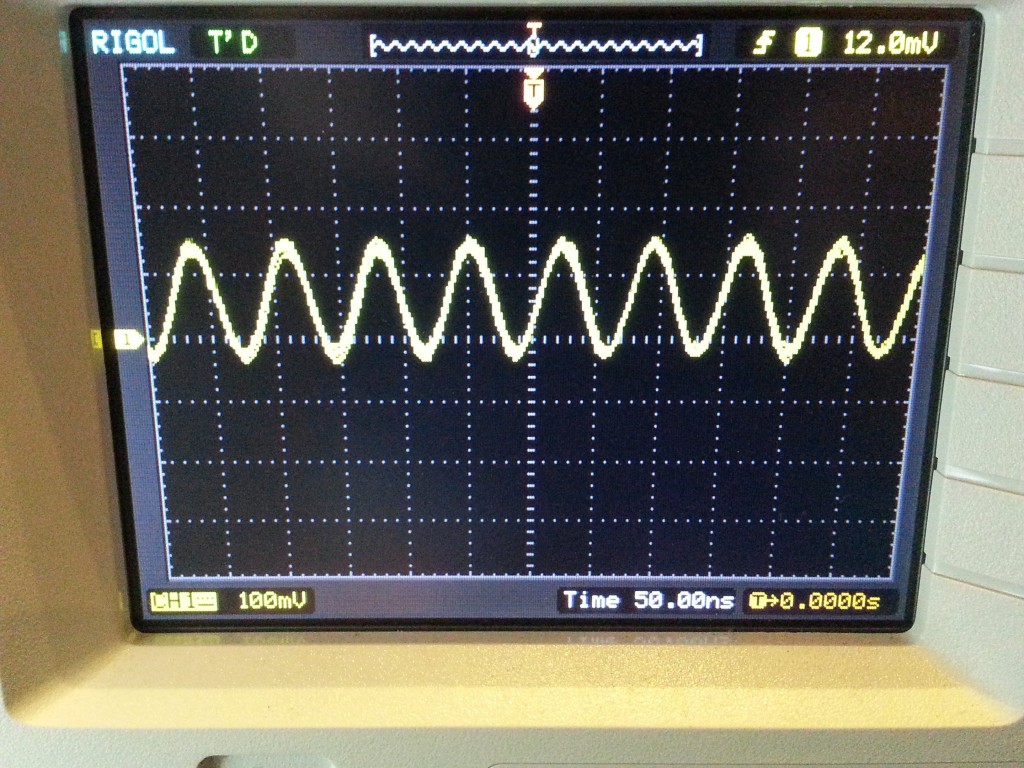
With only 4 control wires we can control the board via the arduino. This gives us a variable sine wave generator that we can control to give us a very nice sine wave from 0 Megahertz up to around 40 Megahertz at almost a full volt peak to peak.

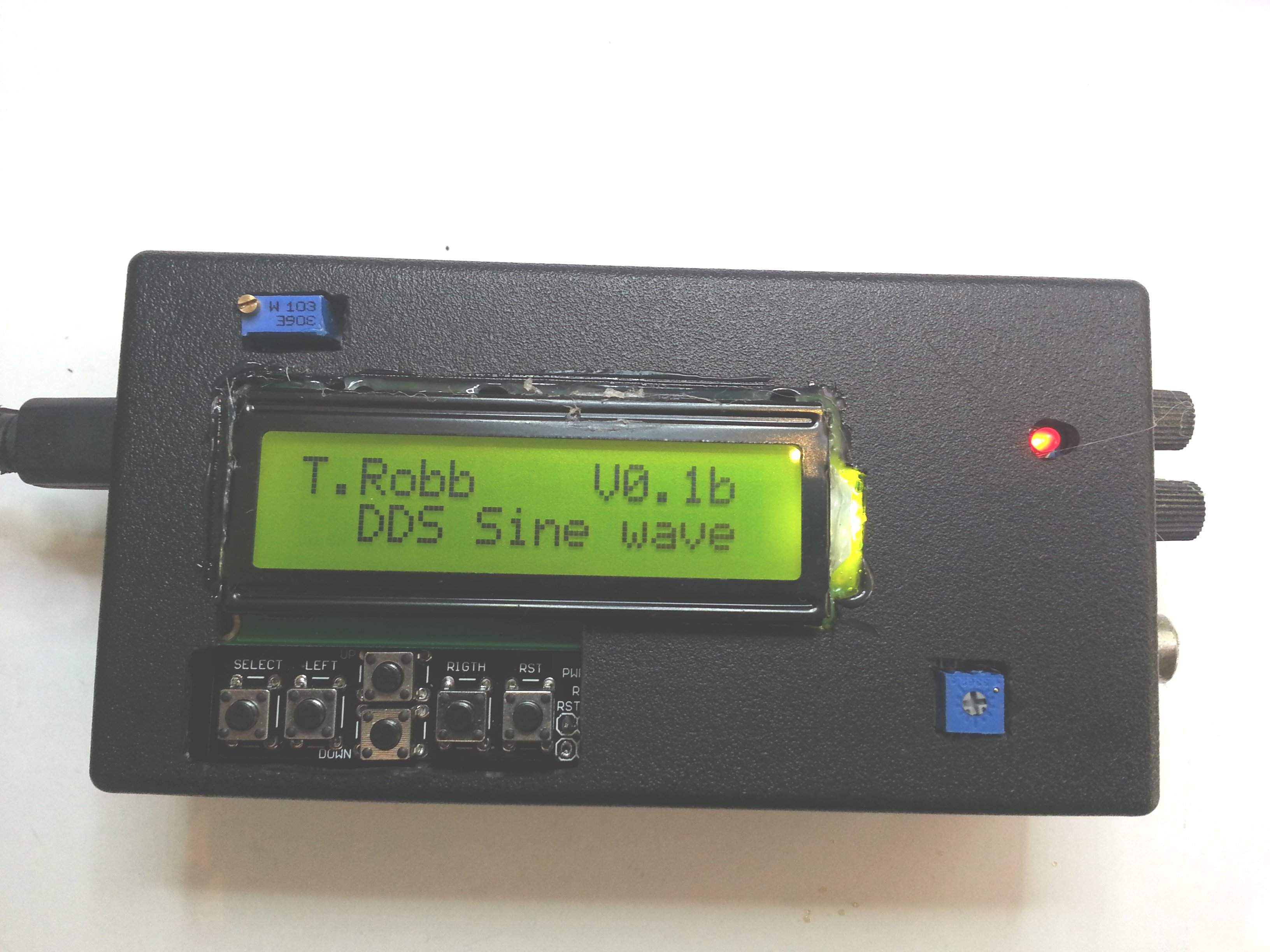
I decided to use an LCD keypad to give some on screen visual indication of the frequency plus a means of controlling the frequency quickly and easily.

2013-08-12 17.28.16

The code to upload to the Arduino, can be relatively straight forward.

I have been using libraries to simplify the toggling of the control pins to set the frequency on the sub board. Also cause i’m not that smart yet! The dds.h library is from Anthony Good - K3NG

So simple to use, the command to set the frequency is simply;

ddschip.setfrequency(Frequency);

Could it be any easier?

To get the board up and running, find Anthony’s library here.

Place the DDS directory in your arduino sketches/library folder with all the other libraries. That way when you compile/upload the IDE will find the file automatically.

The board has a clock pin, a load pin, a data pin and a reset pin. The other 4 pins of use are the sin wave ououtput and a square wave output.

2013-08-12 17.27.27


2013-08-12 17.27.13

In the setup code you will just need to define what pins you have used for what job between the DDS board and the Arduino.

#define data_pin 12
#define load_pin A5
#define clock_pin A4
#define clock_hz 120000000LL

dds ddschip(DDS9850, data_pin, load_pin, clock_pin, clock_hz);

2013-08-12 17.36.53

This sets my dds up with its 120mhz onboard crystal. I am substituting the pin numbers with words to make it easier to understand. For example the word data_pin would be replaced everywhere it is found at compile time with the number 12. this is what the #define command does

Now the chip pins have been defined, we can just use the ddschip.setfrequency(Frequency); command to set the frequency to any frequency we desire, within the capabilities of the device. The AD9850 boards i have used are pretty good for about 0-40mhz, beyond that they are a little sketchy.

2013-08-12 17.29.36

2013-08-18 12.52.22

I figured that i would use the up and down buttons to raise or lower the frequency.

I decide to use the left and right buttons to cycle the amount the frequency would increment on raising or lowering. I chose, 1Hz, 10Hz, 100Hz, 1KHz, 10KHz, 100KHz and 1MHz.

I cobbled together some code, some of which i hacked out of a previous LCD keypad project (Morse coder). I have kept the interface reasonably simple, after all we only have 16 characters on two lines.

2013-08-12 17.39.58

2013-08-12 17.40.17

After I had it built up on the bench and had tested it extensively I decide to put it all in a box. Initially i wanted to put a battery pack inside the box as well, but decided to leave access to the power jack so i could just plug in a battery pack externally if i wanted to. The result are the photos you see here. The LCD keypad shield is designed to be used in the open and not really designed to go in a case, but i shoehorned it in with lots of cutting. I used a terminal block on the side for the sine wave output and I also decided to break out the square wave output and its associated adjustment pot, the LCD contrast adjustment pot and the DDS board power light.

Here is the code I came up with;

/* T Robb 22.7.13

the way it works , is we read the buttons for up and down, we use that to increment or decrement a number which we later
use to set an increment or decrement amount, ie 10hz, 1khz, 1mhz etc
then if the left or right buttons are pushed we go up or down in frequency byt the incrment amount

*/


#include <stdio.h>
#include <dds.h>
#include <LiquidCrystal.h>

#define RESET 13
#define data_pin 12
#define load_pin A5
#define clock_pin A4
#define clock_hz 120000000LL
#define calibrationValue -0.0400000 // this is a value we change to calibrate our particular chip more accurately
#define buttonPin A0

// chip, data_pin, load_pin, clock_pin, clock_hz
dds ddschip(DDS9850, data_pin, load_pin, clock_pin, clock_hz); // set my dds up with 120mhz onboard crystal
LiquidCrystal lcd(8, 9, 4, 5, 6, 7);

// some variables to use in our program
long toFrequency = 14070000;
long currentFrequency;
long maxFrequency = 40000000;
long minFrequency = 0;
int incrementNumber = 6;
int maxprogramnumber = 6; // dont forget to increase the menu numbers here!!
int programnumber = 1;

void setup()

{
Serial.begin(9600);
Serial.println(“Beginning Setup”);
// set up the LCD’s number of columns and rows:
lcd.begin(16, 2);
lcd.clear();
lcd.setCursor(0, 0);
lcd.print(“T.Robb V0.1b “); //Print a little message
lcd.setCursor(0, 1);
lcd.print(” DDS Sine wave “);
delay(2000);
// setup pins
pinMode(RESET, OUTPUT);
pinMode(data_pin, OUTPUT);
pinMode(load_pin, OUTPUT);
pinMode(clock_pin, OUTPUT);
pinMode(buttonPin, INPUT);
digitalWrite(buttonPin, HIGH);

ddschip.calibrate(calibrationValue); // this is a value we change to calibrate our particular chip more accurately
ddschip.setfrequency(toFrequency);
lcd.clear();

}

void loop()
{
if(toFrequency >= maxFrequency){(toFrequency = maxFrequency);}
if(toFrequency <= minFrequency){(toFrequency = minFrequency);}
ddschip.setfrequency(toFrequency);
currentFrequency = toFrequency;

switch(incrementNumber){

case 0:
Serial.println(“increment amount is 1hz”);
lcd.setCursor(0, 0);
lcd.print(“Change By 1hz”);
break;

case 1:
Serial.println(“increment amount is 10hz”);
lcd.setCursor(0, 0);
lcd.print(“Change By 10hz “);
break;

case 2:
Serial.println(“increment amount is 100hz”);
lcd.setCursor(0, 0);
lcd.print(“Change By 100hz “);
break;

case 3:
Serial.println(“increment amount is 1 000hz”);
lcd.setCursor(0, 0);
lcd.print(“Change By 1khz”);
break;

case 4:
Serial.println(“increment amount is 10 000hz”);
lcd.setCursor(0, 0);
lcd.print(“Change By 10khz”);
break;

case 5:
Serial.println(“increment amount is 100 000hz”);
lcd.setCursor(0, 0);
lcd.print(“Change By 100khz”);
break;

case 6:
Serial.println(“increment amount is 1 000 000hz”);
lcd.setCursor(0, 0);
lcd.print(“Change By 1Mhz”);
break;

default:
Serial.println(“increment amount is 100hz”);
lcd.setCursor(0, 0);
lcd.print(“Change By 100hz “);
break;
}

lcd.setCursor(0, 1);
lcd.print(“Freq is “); //Print to lcd
lcd.setCursor(8, 1);
lcd.print(currentFrequency);

Serial.println(incrementNumber); // temporary for debuggin delete me

Serial.print(“Current Frequency is set to :”);
Serial.println(currentFrequency);

while((analogRead(buttonPin))>=1000){} // do nothing while no buttons pressed to chill out
delay(5);
if(analogRead(buttonPin)>=100 && analogRead(buttonPin)<=200){ // we have pushed up
upFrequency();
delay(300);
}

if(analogRead(buttonPin)>=200 && analogRead(buttonPin)<=400){ // we have pushed down
downFrequency();
delay(300);
}

if((analogRead(buttonPin))<=50){ // we have pushed right
incrementNumber++;
delay(300);
}

if(analogRead(buttonPin)>=400 && analogRead(buttonPin)<=600){ // we have pushed left
incrementNumber-;
delay(300);
}

if(incrementNumber > 6){incrementNumber = 0;} // this is where the menu goes around and around
if(incrementNumber < 0){incrementNumber = 6;}

delay(100);
lcd.clear();

}
void upFrequency()
{
Serial.println(“Going UP Frequency”);
switch(incrementNumber){

case 0:
toFrequency = (toFrequency + 1);
break;

case 1:
toFrequency = (toFrequency + 10);
break;

case 2:
toFrequency = (toFrequency + 100);
break;

case 3:
toFrequency = (toFrequency + 1000);
break;

case 4:
toFrequency = (toFrequency + 10000);
break;

case 5:
toFrequency = (toFrequency + 100000);
break;
case 6:
toFrequency = (toFrequency + 1000000);
break;

default:
toFrequency = (toFrequency + 10);
break;
}

}
void downFrequency()
{

Serial.println(“Going DOWN Frequency”);
switch(incrementNumber){

case 0:
toFrequency = (toFrequency - 1);
break;

case 1:
toFrequency = (toFrequency - 10);
break;

case 2:
toFrequency = (toFrequency - 100);
break;

case 3:
toFrequency = (toFrequency - 1000);
break;

case 4:
toFrequency = (toFrequency - 10000);
break;

case 5:
toFrequency = (toFrequency - 100000);
break;

case 6:
toFrequency = (toFrequency - 1000000);
break;

default:
toFrequency = (toFrequency - 10);
break;
}
}


Arduino Basics

Getting started with an Arduino

I thought I would write a little bit of a blog about the arduino and how to use it for simple tasks. The arduino is very simple 5 volt microcontroller with a very simple programming environment. The best part about the arduino has to be its programming environment, what they call the integrated development environment, or IDE for short. It also has a very simple plain English structure to its commands. Install the IDE here.

Arduino UNO

Here’s an example of some code.

void loop{

digitalWrite(13, HIGH); // Send 5 volts to pin 13

delay(1000);

digitalWrite(13, LOW); // Send 0 volts to pin 13

delay(1000);

}

To follow along it might be nice to have the arduino reference page up in your browser along side this article. http://arduino.cc/en/Reference/HomePage

Within the IDE in the menus at the top you will find a bunch of examples, how cool is that. There is also a link to the reference page.

Now the thought of writing programming,

for a lot of people sounds way too complicated and a bit beyond what they would like to learn. This is where the arduino has made its mark. First of all it comes with a very simple, easy to install, and easy to use editor. The editor has a menu that includes examples as well as a reference library explaining each command and how to use. The board itself is an amazing piece of hardware based around a very simple microcontroller chip that’s easily replaceable but with the right software it’s incredibly simple to automate tasks and to connect to an amazing array of other hardware.

So lets get started.

Most programming involves the inputting and outputting of information, switch positions, sensor values etc. For example we need to read if a switch is in a given state, we may then decide to turn on a light. So how should we store this information? In variables types such as integers, floats and booleans. Dont worry about the lingo, it will start to make sense after a while. Integers are whole numbers like 42 or 327, float is a decimal type like 3.14159, while boolean can only exist as either TRUE or FALSE. Char is another type which holds characters like the letter T.

Ok so now we have some data types, we need to tell the program about them, give them a name and then think about getting data in and out of these values. Here is an example of “Declaring” an integer;

int x = 42;

we are declaring the variable x as an integer equal to 42. Now we shall put variables aside for later and take a look at some other ways of deciding things and driving pins.

How about this,

void loop{

digitalWrite(13, HIGH);

delay(1000);

digitalWrite(13, LOW);

delay(1000);

}

Can you hazard a guess as to what it does? You may have noticed the word loop and the {} parentheses at the start and finish, everything inside these parenthese will be executed in order then repeated forever. You may have noticed the command

delay(1000);

All commands end with a semi colon. Delay pauses in milliseconds in this case 1000 which is one second. The rest you should know by now, Turning pin 13 ON, delaying a sec, then turning OFF, then looping around over and over. A blinking light is what we have created.

Now to think about getting data into and out of our micro via the hardware pins so we can actually do some useful work instead of faffing about in software.

Lets look at the following programming statement.

if(digitalRead(pin4)=HIGH){

digitalWrite(pin6, HIGH)

}

You may have already gleaned some information here, you may not. In plain english we can see at least three things, IF, Read, and Write.

The IF command will execute everything that is inside the {} parentheses block whenever the term or equation or whatever is inside the () brackets is either true, equal to 1, or HIGH.. For example;

if(1){

Serial.print(“Hello World”)

}

Would always print “Hello World” to the serial port, whereas;

if(0){

Serial.print(“Hello World”)

}

would skip the parentheses block.

You can open up the serial monitor in arduino, by heading up to the tools menu. Remember to use the serial port, you must first initialize it with the Serial.begin(9600); command.

So, going back to the example;

if(digitalRead(pin4)=HIGH){

digitalWrite(pin6, HIGH)

}

The command digitalRead(pin); returns a HIGH or a 1 if there is 5 volts on the pin number specified.

The code asks IF pin 4 reads HIGH, ie it has 5 volts on it, then digitalWrite 5 volts or a HIGH to pin 6.

So we can connect a button from 5 volts to pin 4 and an LED with a resistor from pin 6 to ground. When we flick the switch the LED will light up. Sounds simple and of course it is.

So now we can read and write to the digital pins, well done.

Straight away we can make all sorts of things, push button operated relays, (morse key?), light chasers and flashers, how about a movement activated light? PIR’s on ebay are about $5 and only need 5v and ground which the arduino can supply, and will output 5volts when triggered, too easy! I have built a board around this.. http://www.tobyrobb.com/shop/index.php?act=viewProd&productId=6&ccSID8643dd60547e611052421a6659ed64d2=cdf37eff4c45604703c8ed7da0d483e1

Now that we have digital coding under our belts, lets have a look at analogue coding. This is going to be quite easy actually, here are the two main commands;

analogRead(pin);

analogWrite(pin);

You’ll notice that the second word in a command is capitalized, that’s so its easy to read the command as two distinct words.

Now in the last example the output of digitalRead() would only return a 1 or a 0, which is all that digitalRead can return.

analogRead is different in that it can return a value, from 0-1023. That’s an integer. if there is exactly zero volts on the pin, we will get back a value of 0, whereas 5 volts would return 1023. 2.5 volts would be 512 and so on, do you get the picture?

To read higher values than 5 volts, we use 2 resistors as a resistor divider.

Now how can we store this value from the analogRead function?

how about this statement;

x = analogRead(A0);

We are reading pin A0 and putting the value into the variable x.

We could do this;

void loop(){

x = analogRead(A0);

Serial.print(x);

}

or this;

Serial.print(analogRead(A0));

both forms would print the results of pin A0, but the first would store it in a variable called x, which we could use later if we wanted too.

How about a simple 0 to 5 voltmeter;

Serial.print(“The voltage on Analog Pin 0 is : ”);

Serial.println(analogRead(A0)/205);

Notice i am dividing the result of the analogRead by 205, to change the value to volts, ie. 1023/205 equals 5 volts or 512/205=2.5 volts.

Another example;

void setup(){

int x = 0;

}

void loop(){

x = analogRead(A0);

if(x>=512){

digitalWrite(13, HIGH);

}

}

If theres more than 2.5 volts on pin A0, then turn on pin 13. When hooked to an LDR or a thermistor we would now have a darkness or temperature activated pin..

While it is light, the LDR is a fairly low resistance, and it pulls the pin down towards zero volts which will not pass our IF statement. As it gets dark, the LDR becomes very high resistance, and the 5v can pass through the 10k resistor raising the voltage on the analog input pin. You may have to fiddle with the values in the code to get the right triggering value, but this is the beauty of using code, you wont need to change the resistors, and you can use the earlier example code to print out the value of the pin so you get an idea of what values you can expect from your sensors.

Well i hope that analogRead wasn’t to hard to understand, just give it a pin number and assign it to a variable with the equals command, or use it directly inside another command.

Now for analogWrite.

Im sure your already guessing what it does right? Yes it puts a voltage on the pin anywhere from 0 to 5 volts, depending on what you tell it. But its not from 0-1023, this time its from 0-255. So it needs to be told which pin to use, and a value. NOT every pin on the arduino can give out analog voltages, just the ones marked with PWM.

The command

analogWrite(10, 255);

Would put 5 volts on the pin, whilst

analogWrite(10, 127);

Would put an average of 2.5 volts on the pin.

Notice i said average. It’s not really a true 2.5 volts, it kinda cheats. It does this by turning the voltage off for half the time and on at 5 volts for half the time. It does this pretty quickly. Giving us an average of 2.5v.

This means that something like an LED, which cant be run on 2.5v and would be very hard to dim, can now be dimmed as its still getting its 5 volts, and will light up, but it is not on for as long as so will appear dimmer, the strobing happens so quickly the eye cannot perceive the flashes.

So thats the basics.

Get yourself an Arduino UNO board, don’t pay more than $15, try ebay worldwide, sort by price and give it a go!

Further experimenting..

There are a huge number of commands available in Arduino to make automating some tasks easier and to make programming quite easy. There are commands to drive servos, stepper motors, LCD’s , serial ports, speakers, LED matrices, even a $10, 0-30mhz@1Volt variable frequency sine wave DDS generator board, all extremely simply. To look at some different hardware, which you probably have in your junk box, try looking here.

Maybe your ready to remove the chip and put it on a breadboard…

There are many commands and many examples, don’t forget you can access the examples and the reference through the menus of the IDE.

This has been a basic walkthrough of some of the common commands, i urge you to try many of the others.

Here is one last example that should be easy to understand and to get you started with what you know already. Just copy and paste into the IDE.

/*

Make some morse with a relay

*/

int relayPin = 13; // This is the integer that tells us what pin the relay is connected to

int dit_time = 100; // This is the integer that tells us how long a DIT is

int dah_time = 300; // This is the integer that tells us how long a DAH is

int space = 100; // The time to wait in between beeps

int letter = 200; // The time to wait in between letters

// Begin setup

void setup(){

pinMode(relayPin, OUTPUT); // We don’t always have to , but lets tell the hardware we are using the relayPin as an OUTPUT

digitalWrite(relayPin, HIGH); // Lets turn off the relay at the start with a HIGH

// ie 5 volts, that’s how my particular relay works.
}
// Begin the main loop

void loop(){

// Just put the dit’s and dah’s in order here to say what you want to say in Morse add some // delays if you need them..

dah(); //we have made our own command really, look below and you’ll see it defined
dit(); // when we call it like a regular command, everything in the parentheses executes
dah();
dit();

delay(letter);

dah();
dah();
dit();
dah();

delay(2000); // lets wait afew seconds before going back to the start of the loop
}

// Below are functions, we can call them in the main loop to save us having to rewrite them each time

void dit(){

digitalWrite(relayPin, HIGH); // Make sure relay is OFF before we start
digitalWrite(relayPin,LOW); // A LOW or zero volts on the relayPin turns our relay ON
delay(dit_time); // wait the specified time
digitalWrite(relayPin, HIGH); // We better turn relay off now we are finished
delay(space); // wait before starting next part
}

void dah(){

digitalWrite(relayPin, HIGH); // Make sure relay is OFF before we start
digitalWrite(relayPin,LOW); // A LOW or zero volts on the relayPin turns our relay ON
delay(dah_time); // wait the specified time
digitalWrite(relayPin, HIGH); // We better turn relay off now we are finished
delay(space); // wait before starting next part

}


24Mhz -1800Mhz SDR Radio receiver for $15 (Digital,Sideband, AM, FM etc)


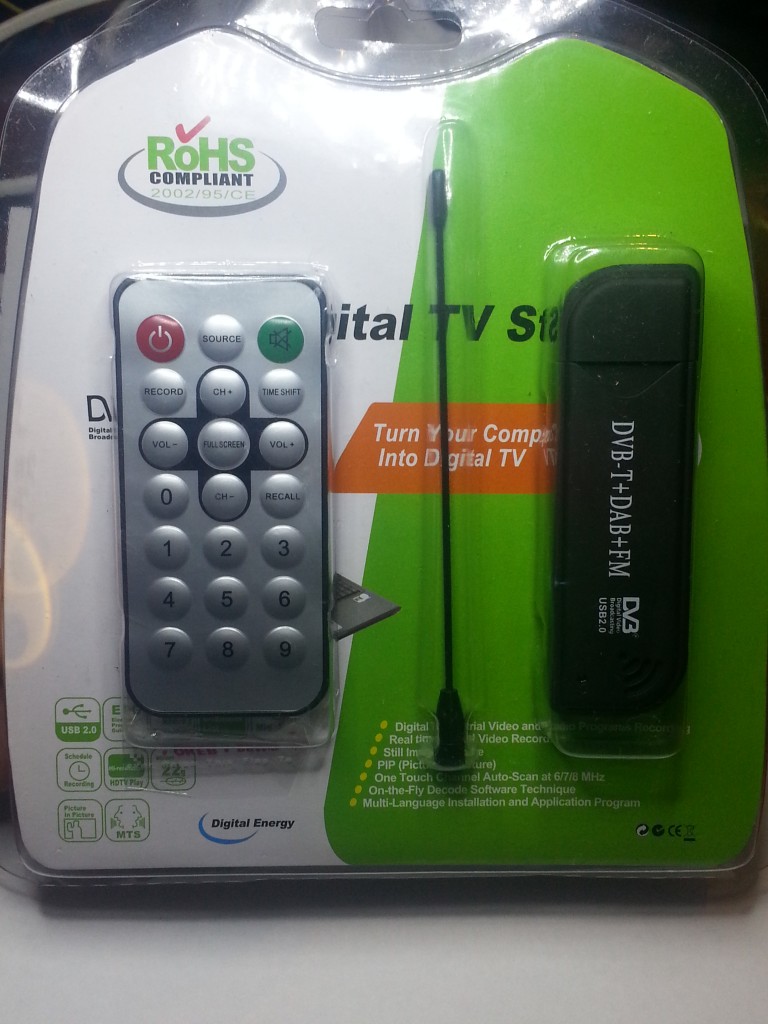
I recently decided to try out one of the new SDR DVB-T TV tuner USB devices. They are sold all around the world as USB TV tuners. The one i use is based on the RTL2832 chipset and can be found all over EBAY for as little as $15.

Got one already?

The simple method: click here for zadig drivers and instructions and here for software. If you don’t have one, skip to the bottom and use mine remotely..

The retail package

The retail package

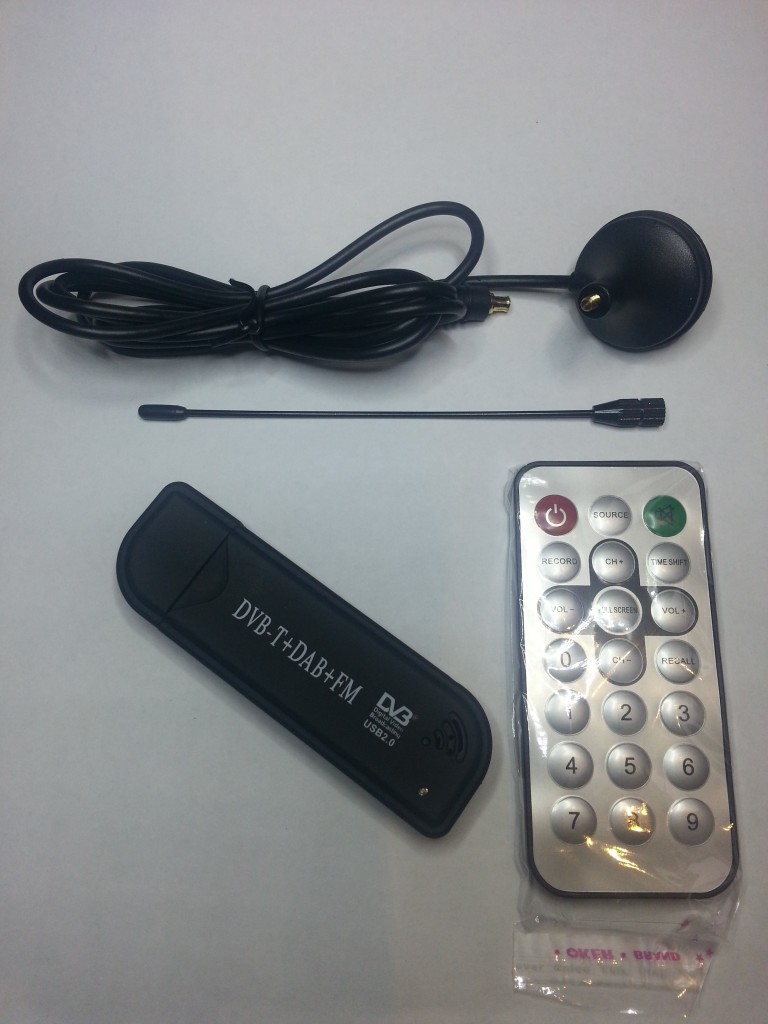
You get a remote, a not so good aerial, a CDROM and the dongle itself.

The parts

The parts


Someone wrote a great driver for the RTL2832 that allows data in and out of the chip. We should all be grateful that the open source community is such a giving bunch.


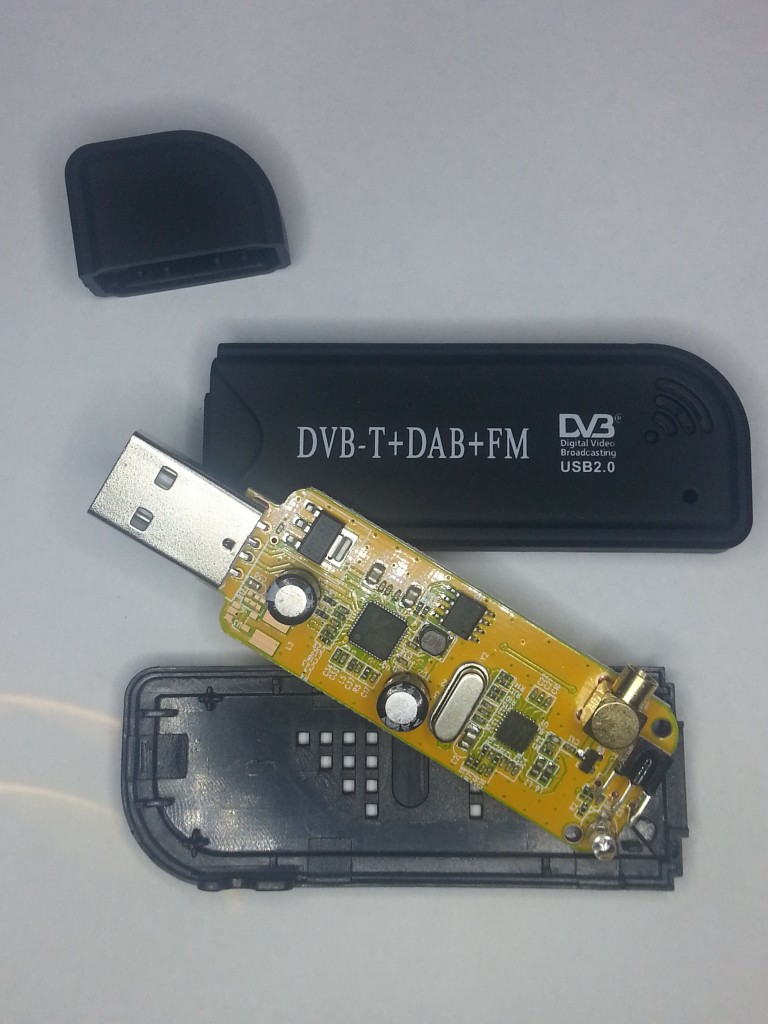
Inside the usb device

Inside the usb device


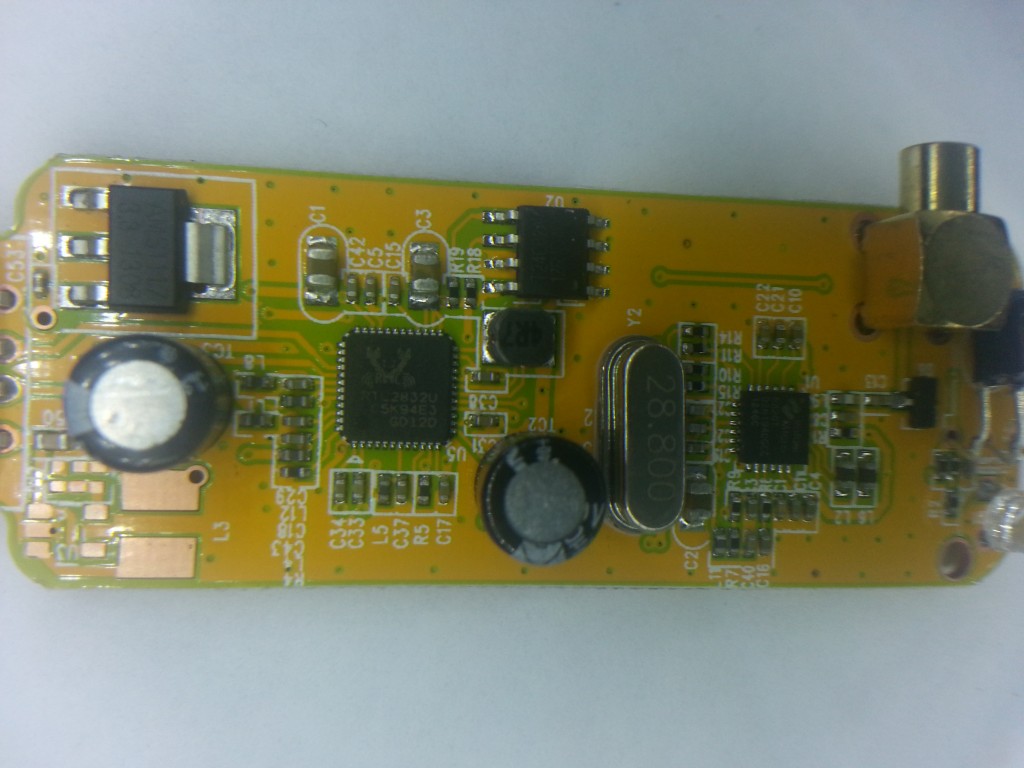
There is a regulator, the RTL2832 chipset, a crystal, an IR receiver, an amplifier and antenna connector on the board by the looks of it.


The board

The board

Installing the driver for these chips is the first step. DON’T install the software they come with unless all you want is TV, which i certainly couldn’t get with the supplied aerial. Instead the SDR drivers for this chipset are essential if you want to listen in amateur radio style.

The zadig drivers are the way to go… http://sourceforge.net/projects/libwdi/files/zadig/

Now there are a number of ways to listen to the USB dongle now that the drivers have successfully defined it as a receiver.

You can use SDR# sharp, or SDR-radio.com version 2. Or probably a few others, if so you will probably need to copy some libraries into it’s operating directory.

Don’t miss this step and this is most often the reason you wont be able to find the receiver in the list of devices available to the decoding software.

I chose SDR-radio.com v2, so i could stream it also on a server and connect to it from anywhere.

http://v2.sdr-radio.com/


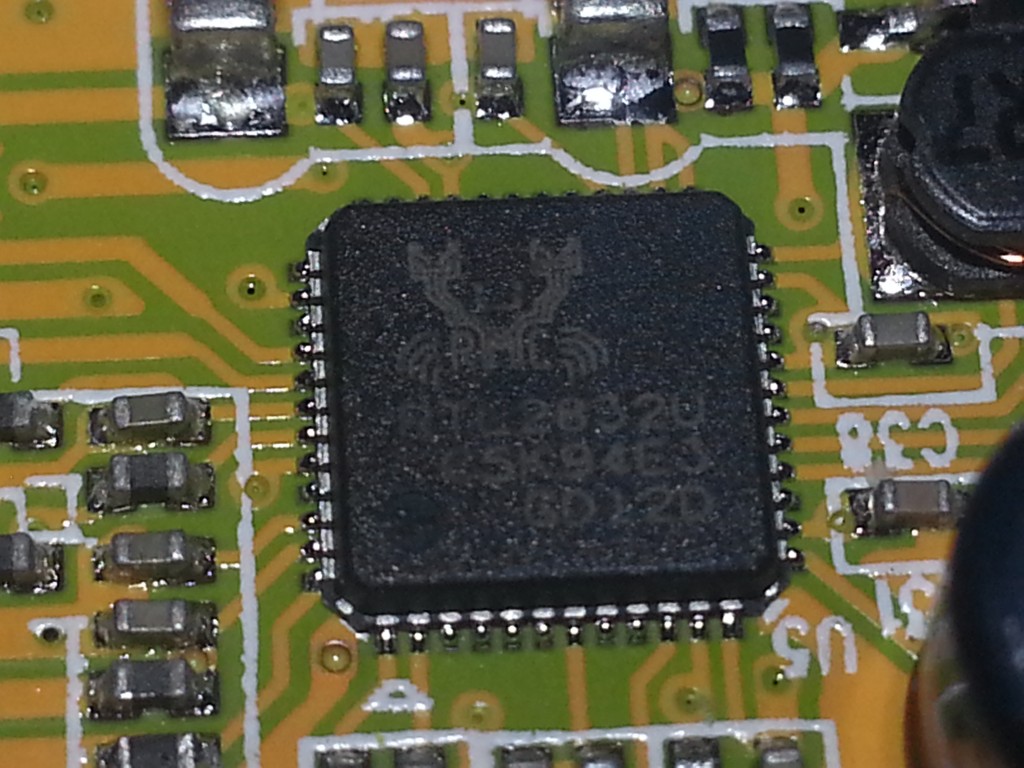
The RTL2832

The RTL2832


A close up of the RTL 2832 chip which is the key to it all.


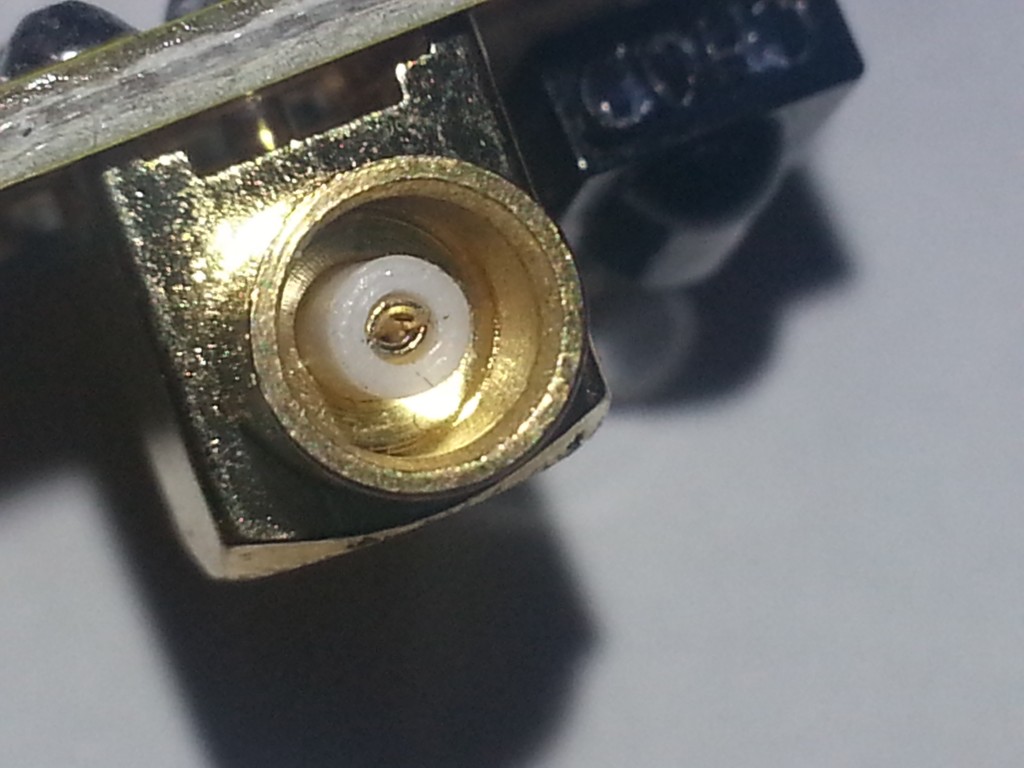
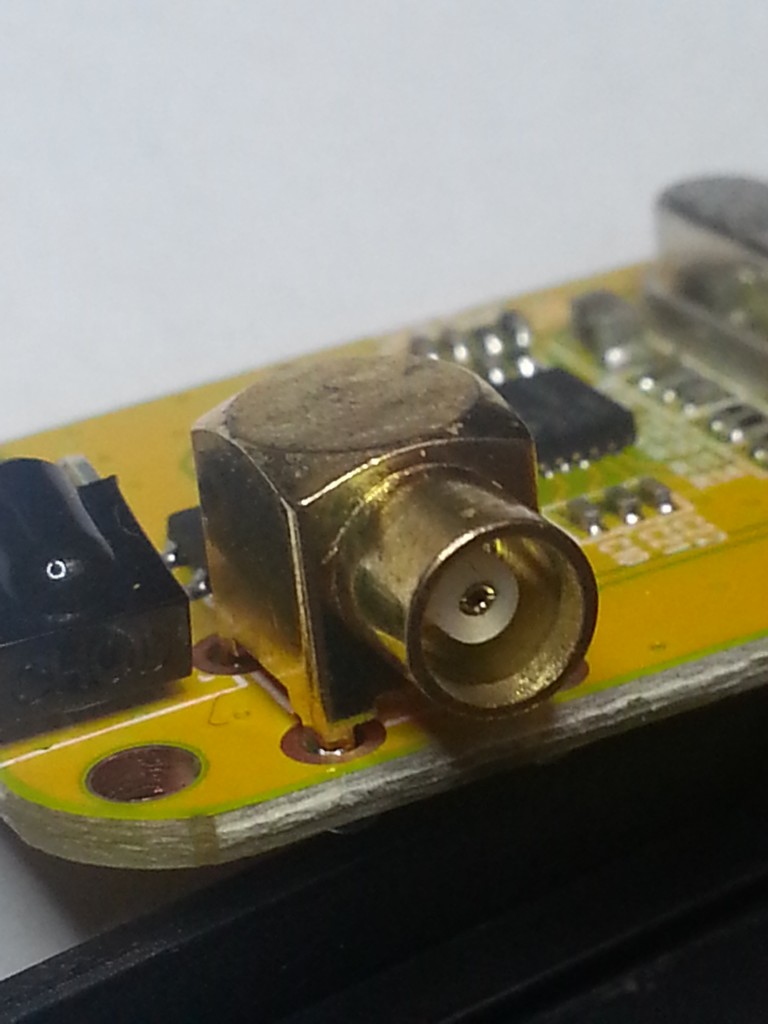
Close up of the micro antenna connector

Close up of the micro antenna connector

What will you get with the supplied antenna?? in short not much. You might get your local radio stations if your lucky. I experimented with various antennas, including the home antennas on HF and VHF, it works really well if given a good antenna.

The micro antenna connector

The micro antenna connector


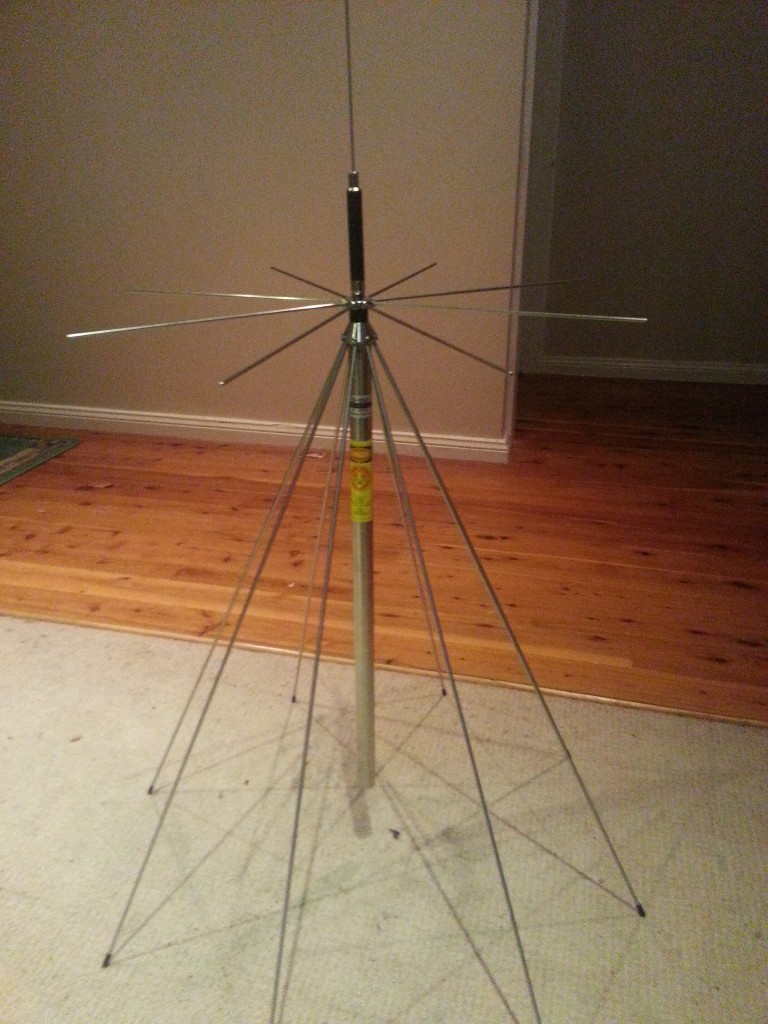
It was using the antennas that i liked to use with my regular rigs, so if i wanted to leave it on permanently for others to connect to, it would need its own antenna. I decided to give its own broadband antenna in the form of a discone.
2013-06-27 17.50.29


Discones are very broadband. That is, they can pick up a wide frequency range, unlike say my 2m/70cm band VHF vertical that i use for VHF operations (100-160Mhz)+(450-500Mhz), Or my end fed horizontal dipole that i use for HF operations from 21-50Mhz. This is the Diamond D130J super, good for 25 to 1300Mhz.

http://www.diamondantenna.net/d130j.html .

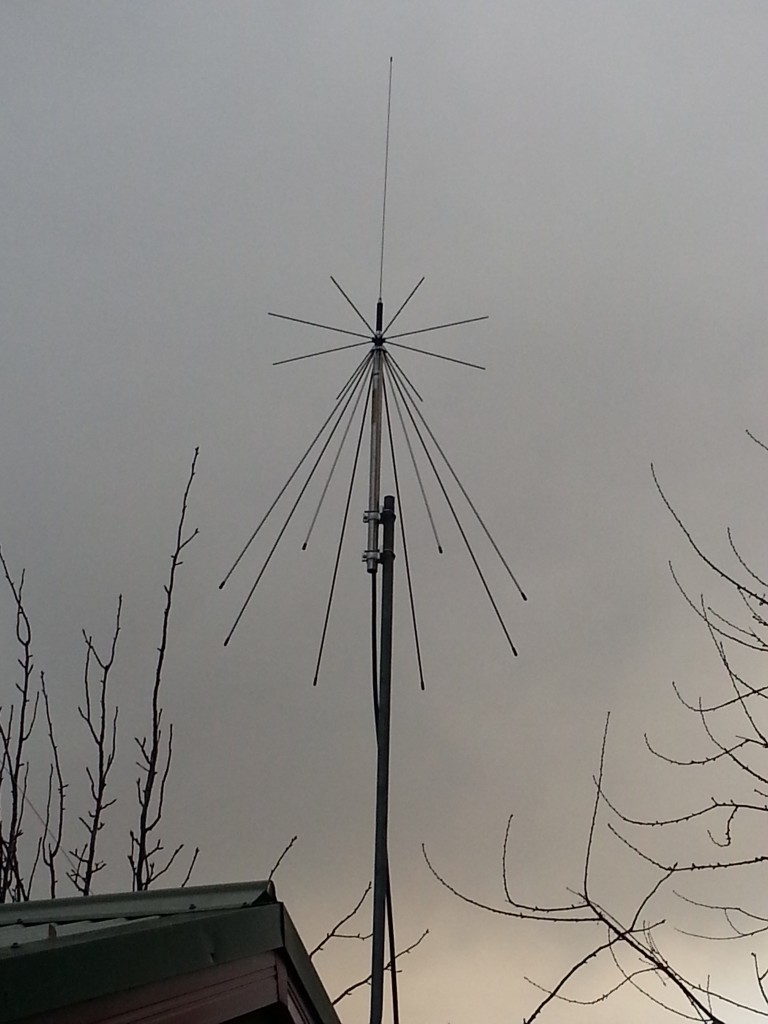
I placed the discone up in the air on a disused pole. I used some good quality low loss RG213 ($3/m) to run it inside to the shack. An MCX male to SO239 female pigtail completed the connection from the receiver to the antenna.

Discone in the air

Discone in the air

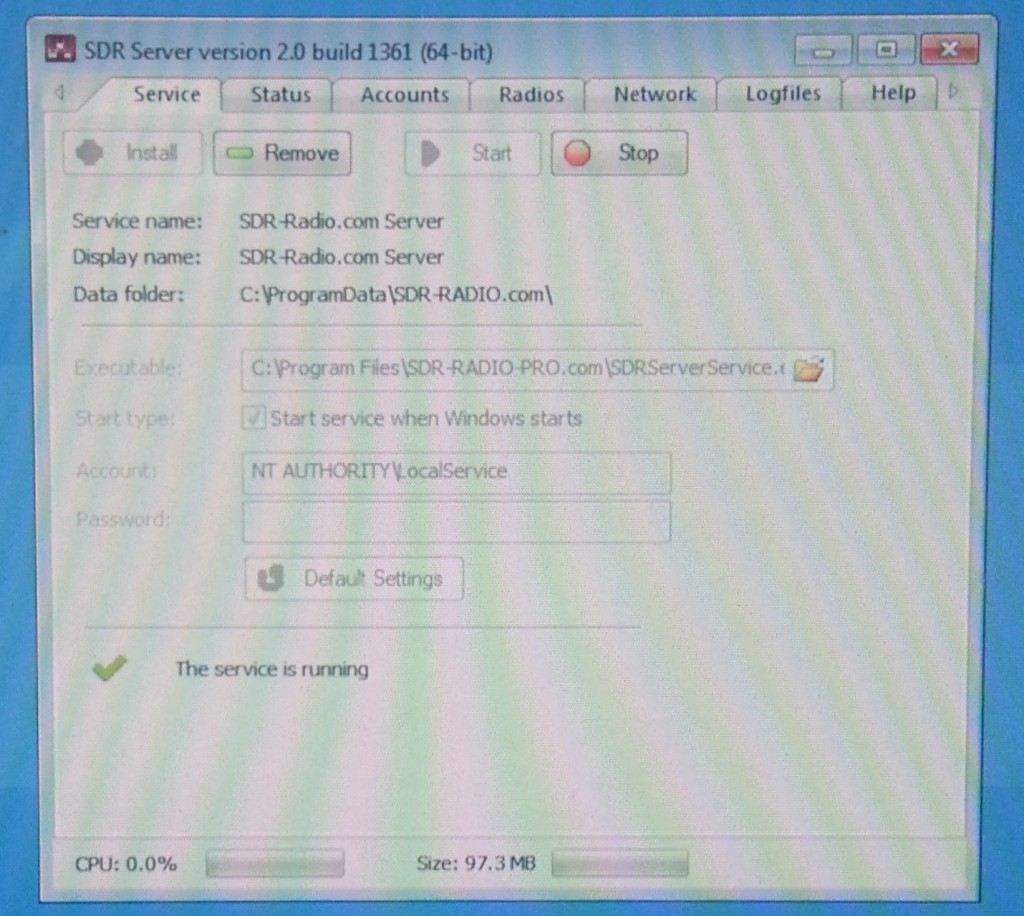
Running some server software…

The server software

The server software

What can you hear?

AM, FM, Upper and Lower Sideband, Morse, Digital and much much more.

Amateur radio transmissions. Like your local 2m repeater, there’s always one nearby if you find the frequency, Narrow or wide FM.

Aircraft. Including air traffic control.

Usually the local services, like taxis, breakdown and service vehicles, the police, fire and ambulance etc.

Telemetry and signalling. Local utilities, government etc.

Things like 433mhz and 315mhz garage door openers, car remotes, alarms, and lots of other crazy devices.

Cordless phones, mobiles and so on all give out there own special signalling.

The 1090mhz aircraft transponder signalling that gives height,speed, aircraft callsign info for example. Can be decoded with many pieces for software for Example: http://rtl1090.web99.de/

Possibly satellite traffic.

You will hear some very strange things out there, and experience, or trial and error will let you successfully decode a lot of it.

I have been successfully porting the audio out through virtual cable and listening in with standard programs like FLDIGI etc to decode digital signals.

Oh boy. What can’t this do for $15!

If you would like to connect to my SDR

currently only with SDR-radio.coms software, the IP is 59.167.129.98, the port is 7999, USER: user PASSWORD: user

click here for version 2 of the sdr-radio.com software

Next on the list is making the sdr available on a webpage widget via free software such as WebSDR.


PWM on the Microchip PIC 16F690

Years ago I put up my first video on YouTube. It was a very poorly shot and edited video on PWM with a PIC 16F690. However as its a reasonably difficult process writing for this chip and the chip is quite popular as it came with the PICKIT 2 it has had a fair few views. I have added some content here from what I remember about the PIC for those who are using it. First here is the original video.

This is an example of a Microchip PIC16F690 PWM (Pulse Width Modulation) example. Used to vary the brightness on an LED or as a speed controller on a DC motor.

PWM in a PIC basically involves reading the current ADC port register values
(ie a memory location which changes its value as the incoming analog voltage changes) and then using a calculation to convert them and copy them directly in to the PWM register.

REGISTERS are memory locations that are connected to physical hardware. We probably all understand that memory is somewhere you can store a value, but with a REGISTER, the memory contents are connected to hardware.

For example, a row of 6 pins are all part of the same PORTA register, the first 2 pins are being driven OFF and the next 4 pins are being driven ON by an external circuit.

The value of the PORTA register when read would be 111100 in binary.

The state of the pins actually effect the memory directly! Dig it?

Now if i was to write the value 001100 to the PORTA register, can you guess what would happen? The pins would now have 5 volts or 0 volts ie ON or OFF depending on the register values i had written, in this case 1 and 2 OFF, 3 and 4 ON, 5 and 6 OFF. Now your getting the picture?

The main routines in this microcontroller example involve moving values from the ADC memory register to the working memory - (MOVLW) then reformatting and resizing the value till its suitable to be moved again to the PWM register - (MOVWF)

SO ESSENTIALLY - the value on the analog pin is copied to the PWM output pin.

THE CODE:

We start by giving all the data values/memory locations plain english names, well sort of.. (some are also defined already inside the included libraries as standard names for things)

Then we do some setup, write to some registers that set hardware options inside the chip rather than hardware outside the chip (cool isn’t it! This is SO RETRO!)

We do all this by making up a value, usually in HEX, and copying it to a thing we call the working memory register, basically a holding location, then we move it on the the finally resting place in memory, that we want to put it.

Example movlw 0xF7 , this moves hexadecimal F7 into the working memory.
Example movwf ANSEL , this moves the content of the working memory to the ANSEL register.

Because we can’t transfer directly from one location to another, it has to go through the working memory. After all, that’s really what a processor does.

once the initialising routine is complete, we basically just loop between reading the ADC register, ie, the incoming voltage, and writing the value to the PWM register.

Example movf ADRESH,w ; Copy the value to the working memory from ADC result
Example MOVWF CCPR1L ;Copy the working memory contents to the PWM register
CODE LISTING:
I hope the code is still valid for everybody..

Unfortunately YouTube seems to be destroying the formatting. PM me for a better version if you need it.
; 16F690 PWM out on RC5 0-5V, and in via RA0, using potentiometer to control PWM duty cycle.

LIST P=16F690, W=2, X=ON, R=DEC
#INCLUDE P16F690.INC

cblock 0×20 ;start of general purpose registers
temp ;temp storage
duty ;final duty cycle

endc

movlw d’0′
movwf duty

movlw 0×10 ; A2D Clock Fosc/8
movwf ADCON1
bcf STATUS,RP0 ; back to Register Page 0

bsf STATUS,RP1
movlw 0xF7 ; we want all Port A pins Analog, except RA3
movwf ANSEL
bcf STATUS,RP0 ; address Register Page 0
bcf STATUS,RP1

movlw 0×01
movwf ADCON0 ; configure A2D for Channel 0 (RA0), Left justified, and turn on the A2D module
START CALL Initialise

MainLoop:

call A2D
CALL Pwm
GOTO MainLoop

Initialise:

BANKSEL ADCON1 ;turn off A2D
MOVLW 0×06
MOVWF ADCON1
BANKSEL PORTA
BANKSEL TRISC
MOVLW 0 ;set PORTC as all outputs
MOVWF TRISC
BANKSEL PORTC

MOVF CCP1CON,W ;set CCP1 as PWM
ANDLW 0xF0
IORLW 0x0C
MOVWF CCP1CON

MOVLW 126 ;set highest PWM value
BANKSEL PR2 ;over this (127) is permanently on
MOVWF PR2
BANKSEL TMR2

MOVF T2CON,W ;set prescaler to 16
ANDLW 0xF8 ;PWM at 2500HZ
IORLW 0×02
MOVWF T2CON

MOVF T2CON,W ;set postscaler to 1
ANDLW 0×07
IORLW 0×00
MOVWF T2CON

CLRF CCPR1L ;set PWM to zero

BSF T2CON, TMR2ON ;and start the timer running

RETURN

Pwm: ;use value in W to set speed (0-127)

MOVWF CCPR1L
RETURN

A2D:
nop ; wait 5uS for A2D amp to settle and capacitor to charge.
nop ; wait 1uS
nop ; wait 1uS
nop ; wait 1uS
nop ; wait 1uS
bsf ADCON0,GO ; start conversion
btfss ADCON0,GO ; this bit will change to zero when the conversion is complete
goto $-1
movf ADRESH,w ; Copy the value to the working memory
return

end